Have a Story Idea? Make Your First AI Short Film with Panco
On this page
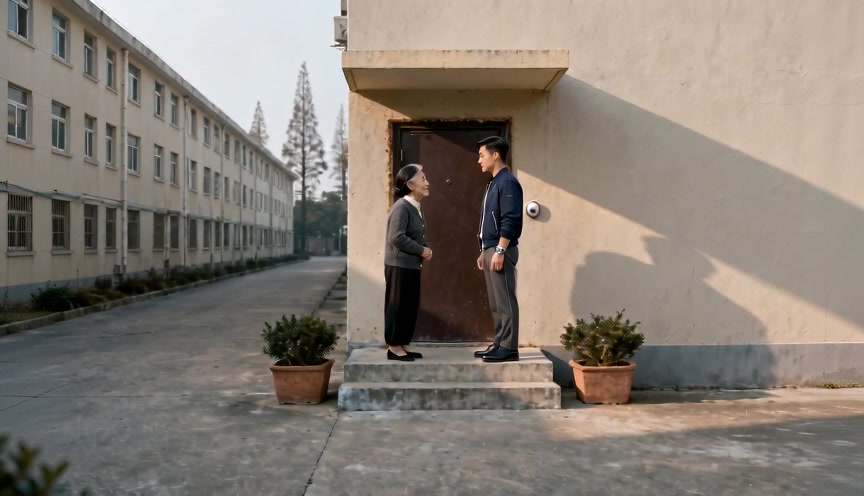
You can picture a scene, but where do you start making it? This Panco AI short film tutorial begins inside a project and follows a mother and son saying goodbye at their doorway. Connect the script, character references, location and shots, then find the tools for voice, canvas organization and editing. Watch the existing eight-second Seedance 2.0 Mini clip below before exploring its production materials.
01Turn the idea into a script and import it
Start with a visible action: a son leaves home while his mother hides her concern in an ordinary goodbye. Break that into four beats—standing together, listening, leaving and watching him go. You can develop characters, conflict and an ending with a script Agent before bringing the agreed text into this import workflow.
第一集 门口的告别

场景一 居民楼家门口 清晨 外
人物:李政权、李政权的母亲

母亲站在门边,儿子停在台阶下。母亲轻声叮嘱,儿子安静听着,轻轻点头。
儿子转身走进楼间通道。母亲留在原处,手指慢慢收拢,目送他的背影远去。
Open your project in Studio, choose Script and select Add script. The Create → Script creation route offers New script instead. Paste text or upload a doc, docx, txt or md file. The Chinese sample retains its episode heading so the parser can identify the story boundary. For your own story, make the episode or act divisions explicit.
Name the script and choose the parsing model, visual style and character appearance setting. Use a realistic style for this scene rather than accepting an unrelated default. After creation, review the episode text in Episode confirmation and use Edit episode to correct names, actions or dialogue before continuing. The sample is an edited practice script for import.
02Create reusable characters and a location
Continue to Element creation, where Characters, Scenes and Props organize the visual assets extracted from the script. Check for duplicate identities or locations before generating individual images or using Batch generation. This scene needs two characters and one doorway; a prop is useful only when the story calls for it.
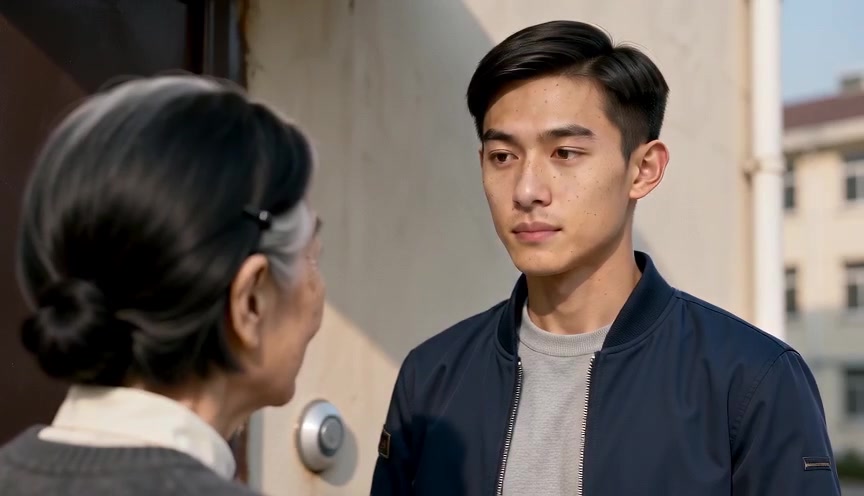
Approve the faces, hair and clothes, then check the location’s door, steps, passage and light. The mother’s dark cardigan and the son’s blue jacket become shared references for later shots. Keep the selected versions in their elements before proceeding.
For a composition with people already placed in the setting, use Fusion image in the project’s Images area. Specify who stands where, their relative size and gaze direction. Settle the composition before adding motion. Below are the actual character and location references used in this case.


03Build shots around one clear action
In Storyboard production, select the episode, segment and shot. Review camera movement, the shot summary, linked characters and location, visual description, aspect ratio and duration. Give each shot a purpose: establish the relationship, show a line being heard, follow the departure or hold on a reaction.
全程无氛围音乐,全程无字幕。无屏幕文字、无水印、无 Logo、无 UI。
全时段视觉素材:〖@李政权-基础〗、〖@李政权的母亲-基础〗、【@居民楼家门口-基础】。
视觉基线:清晨,母亲站在门边台阶上方,儿子站在台阶下方,母子相对;服装、门口布局和光线保持一致,机位保持在轴线同一侧。
0.0–3.0 秒:全景固定机位,交代母亲、儿子和台阶的位置,二人安静相对。
3.0–5.0 秒:切至母亲中近景,她看着儿子,轻声叮嘱,表情克制。
5.0–8.0 秒:切至儿子近景,他安静听完,轻轻点头一次,不做口型。
结束状态:母亲留在门边,儿子仍在台阶下方,准备衔接下一镜的离开动作。
负面约束:不添加其他人物,不改变发型与服装,不越轴,不流泪,不做夸张动作。
For the opening, show the mother above the steps and the son below before moving closer. Keep their facing directions consistent so the departure can follow naturally. The practice prompt describes that opening; replace its asset names with elements from your own project and select those assets in the editor.
Type @ and choose the relevant asset from the suggestions. Pasting a name alone does not attach a reference. The Chinese character and location tokens remain intact in this example so you can recognize each reference. Use the fusion-image controls for composition and reuse character assets to carry identity between shots.
04Generate and review one key video shot
Once the references and description are ready, choose the model, reference mode, aspect ratio and duration. Start with the two-person shot. Check the number of people, clothing, positions and who speaks or listens. Correct a specific problem before generating the rest of the scene.
For a separate trial, go to Create → Free creation, switch the type to Video, add references and describe the action and camera. This entry currently lists Wan, MiniMax and Kling; the project video list also has a separate Seedance 2.0/2.5 Video entry. The opening clip in this article comes from an existing Seedance 2.0 Mini task.
To compare models, keep the reference assets and shot brief the same. Record the version, settings and reason for choosing a result. Judge whether the shot tells the story before judging surface detail. The linked prompt guide goes deeper into motion, camera and dialogue corrections.
Prompts for motion, camera and dialogueExplore this case’s inputs and results05Prepare dialogue and leave room for the reaction
Open Voice in the project, choose New audio, then Speech synthesis. In single-speaker mode, enter one character’s line, select a voice and preview it. Prepare the two voices separately when you want individual control; the page also offers a two-person dialogue mode.
A practice line for the mother is: ‘Take your time. Let us know when you arrive.’ Start at a natural pace, then adjust speech speed and sentence-end silence. Select an output format such as MP3 or WAV, submit the task and listen to the result in the audio list.
Decide whether the edit uses generated video audio or a separate voice track. Avoid doubling the same dialogue across both. Leave time for the son’s nod after the mother finishes, and let the final reaction breathe. These pauses help determine how much of each clip to keep.
06Use the infinite canvas to compare your options
Open Infinite canvas from the project. The plus menu includes Add node, Local upload and Select from project; the inspected workspace contains text, image and video nodes. Arrange the brief, approved assets and candidate shots in separate areas so each item’s purpose stays visible.
For this scene, organize candidates as together → advice → departure → reaction. Add short notes such as ‘keep: cardigan matches’ or ‘redo: son moves inside.’ The canvas helps with review and selection. Match the chosen version back to its storyboard shot so the correct clip reaches the edit.
Explore the infinite canvas07Set up the edit and shape the scene
In Panco’s project detail view, choose Editing → Add task. If Editing is absent from the newer Studio sidebar, open the project detail view from project management. Enter a task name and choose the export frame rate and resolution. Use 16:9 for a horizontal film or 9:16 for a vertical one, matching the compositions you prepared.
Build the sequence around the emotional progression: establish the pair, hear the advice, follow the departure, then hold on the mother. Remove redundant waits and repeated actions. Place dialogue against the right performance and use quiet ambience to connect shots without burying the final pause.
Before exporting your AI short film, watch for identity changes, continuity errors, doubled dialogue and awkward cropping. Then listen without looking for cut-off sentences. Start by completing one scene’s script, assets, shots and sound before expanding the story.
08Questions before your first scene
Two characters and one location make a manageable starting point. Keep approved references and usable clips in the same project so each finished shot makes the next one easier to prepare.
Can I start with just an idea?
Develop the idea into characters, a location, visible actions and an ending, then refine dialogue. Keep episode or act boundaries explicit when importing and review the parsed result in Episode confirmation. Use the practice script as a starting structure.
Do I need new character images for every shot?
Reuse the approved character asset for the same appearance. Add a pose or composition based on that identity when needed, instead of describing an unrelated new character for every shot.
Must I use Seedance, Wan, MiniMax and Kling together?
No. Start with one model and get the key shot working. Compare another model on the same task when you need an alternative or an additional shot, keeping a record of the exact version and settings.