Prepare a new language version
Use the existing story and shots as a reference, then review whether the new dialogue preserves each relationship and story beat.
Upload an existing video or short drama. Panco organizes its characters, locations, props, and shots so you can explore a new cast appearance or language while keeping the story in view.
Each step answers a practical question: what are you changing, what needs to stay recognizable, and where should you review the result?
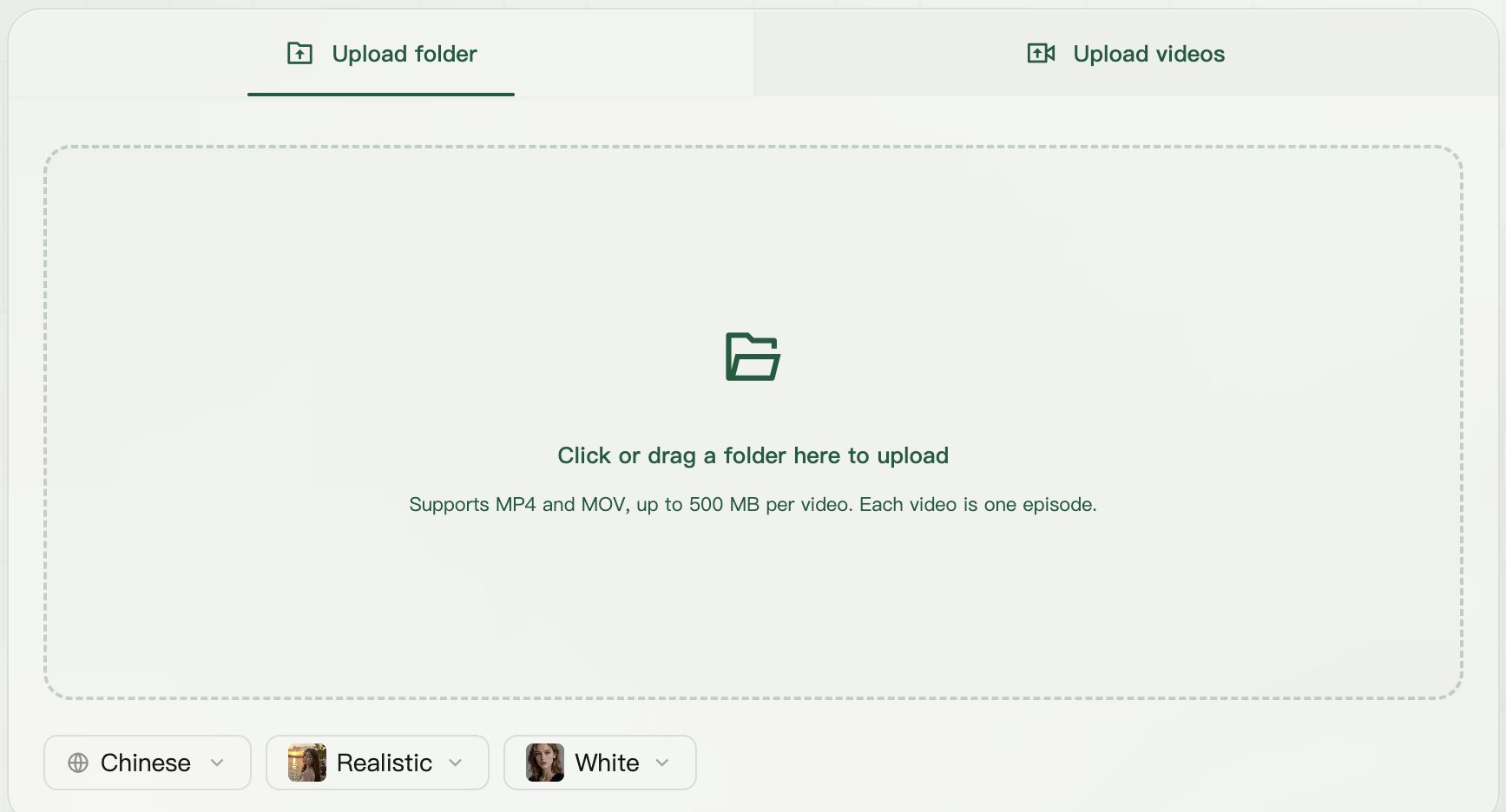
Bring in a video or folder. Each video becomes an episode.
Check characters, locations, and props before generating.
Change character appearance or language, then define voices for the characters or keep the original dialogue.
Link assets, describe actions, and generate one shot or a batch.
Watch the original and new footage on synchronized timelines.
Upload MP4 or MOV files, or a folder of videos. Each video is treated as an episode so its assets, shots, and previews stay together.
You begin with the action, timing, and relationships already present in the footage.
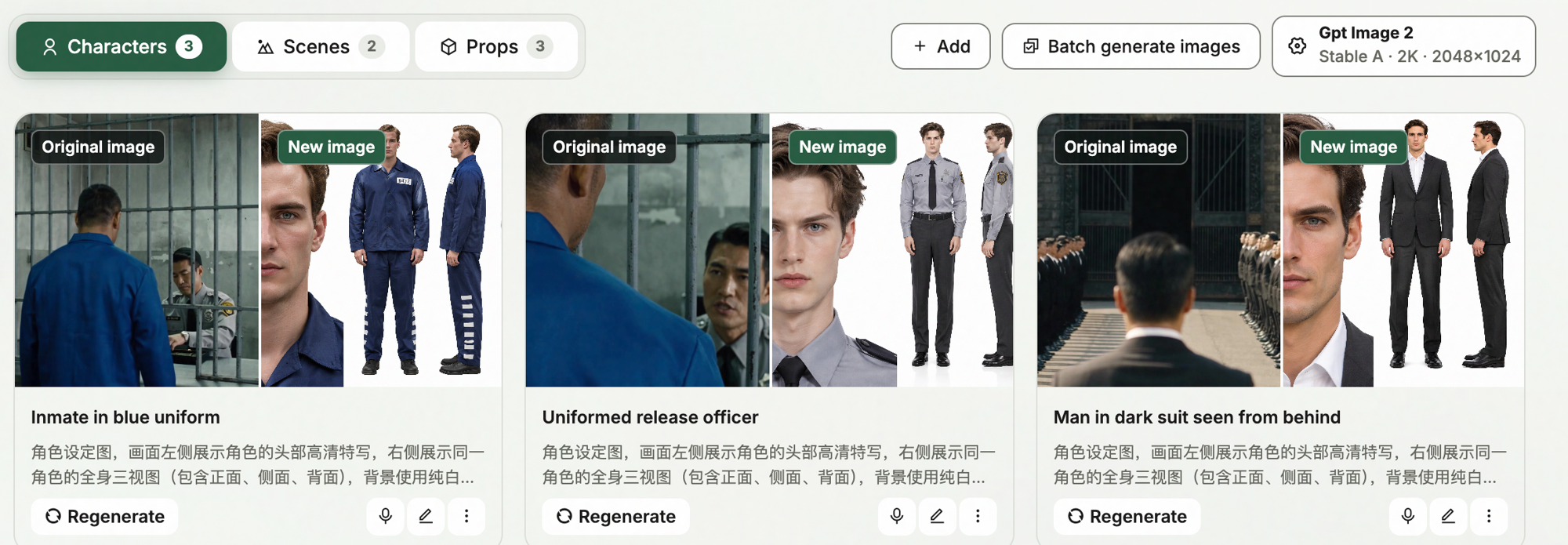
Panco organizes characters, locations, and props from the source. Compare the original image with the new image before you generate shots.
A new appearance can still serve the same role in the story.
Choose a target language when you need one, define a voice and assign it to each character, or keep the original dialogue when it already fits the scene. You can also create new dubbing.
The line, action, and reaction continue to make sense together.
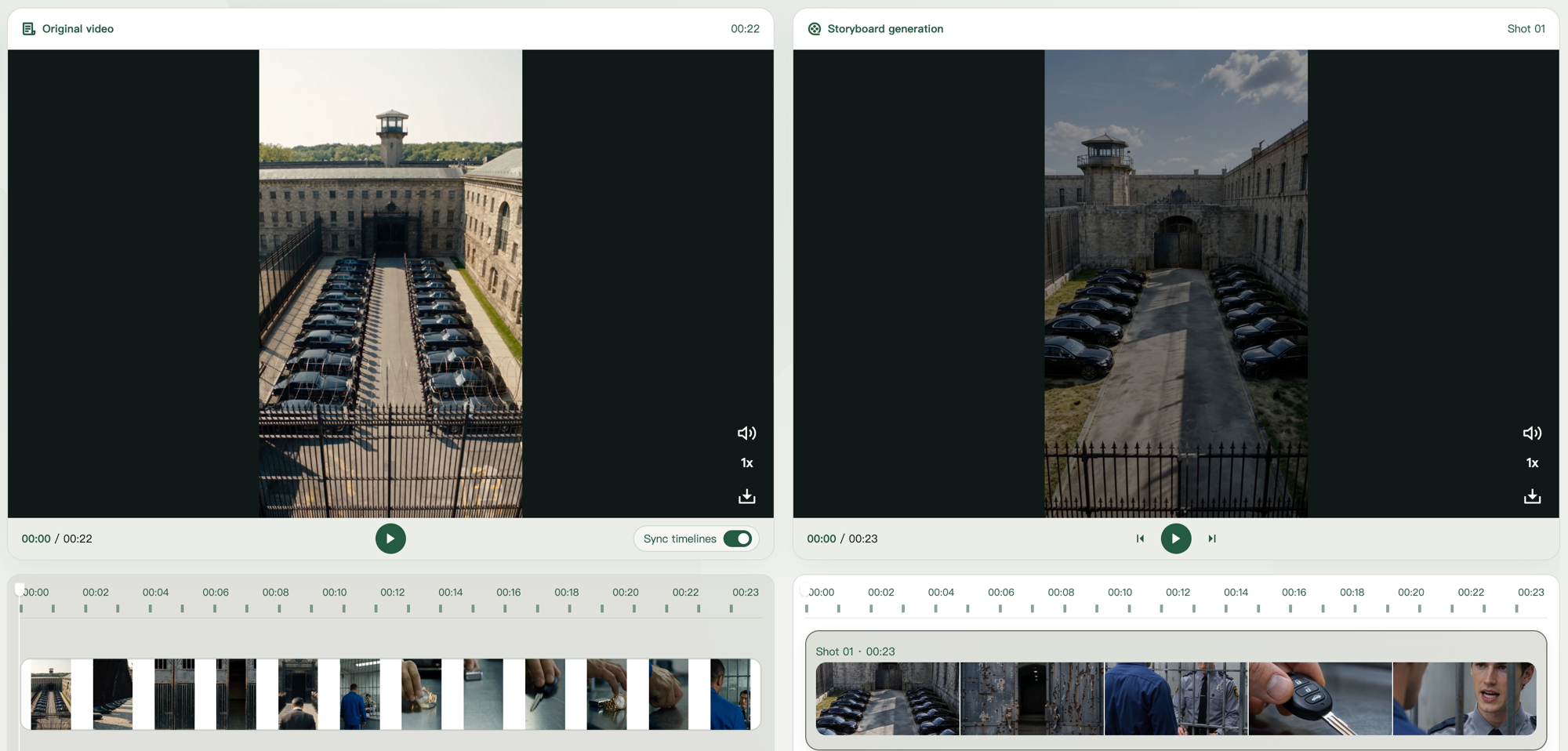
The storyboard view brings linked characters, locations, props, voices, visual descriptions, and generation settings into one place.
When a shot needs work, you can identify the missing reference or unclear action.
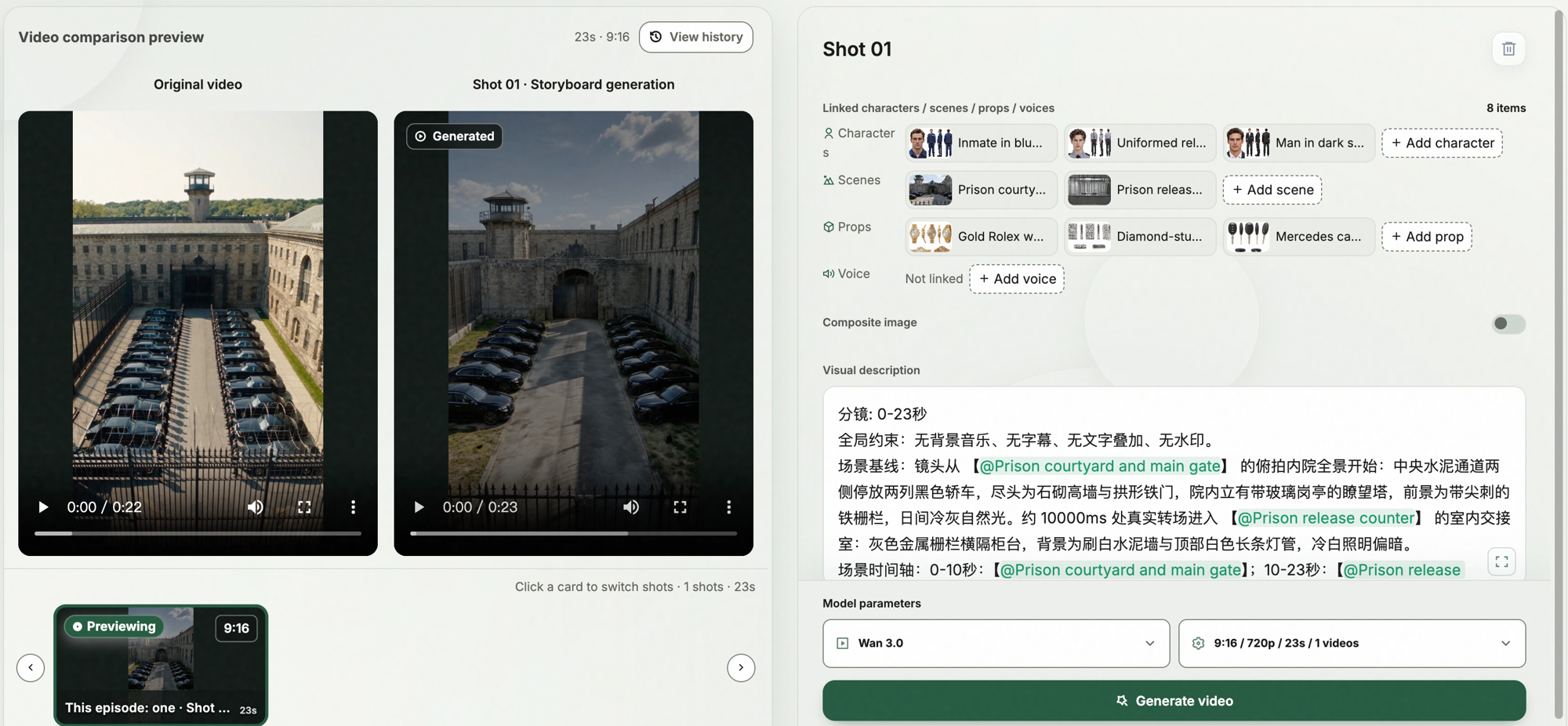
Preview the source and generated footage side by side with synchronized timelines. Review the same story event in both versions before choosing what to keep.
A useful review note names the problem you can fix, such as “the key changes hands after the door opens”.
Use the existing story and shots as a reference, then review whether the new dialogue preserves each relationship and story beat.
Compare new character assets before generation so clothing, roles, and important props remain readable.
Choose footage with a clear action and consequence. Use what you learn there to plan the remaining episodes.
Start with a scene you know well. Once the characters are recognizable, the actions are clear, and the dialogue works in context, use that direction for the remaining episodes.
The workflow keeps generation and review together so you can make a decision at each step.
One-click redraw brings analysis, asset preparation, shot generation, and preview into one workflow. You can adjust assets and shots, then review the result before deciding what to use.
MP4 and MOV files are supported. Each video can be up to 500 MB. You can upload individual videos or a folder, and each video becomes an episode.
Yes. Choose from the character and language settings available in the workspace, then review the generated assets and footage.
Yes. Define a voice for each character and assign it in the workflow. If the original dialogue already fits, you can keep it directly; for a new language, create new dubbing.
One-click redraw starts with existing footage. If you are starting from a written script, explore Script Workflow first.
Choose the characters and language you want to work with, then generate, compare, and refine the footage.