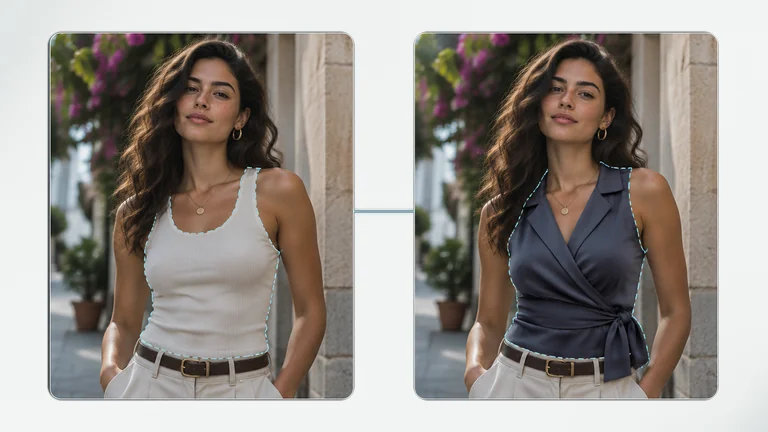
Inpainting
Change the costume without starting from a blank image
A character reference is close, but the clothing or a prop needs changing. Mark the part you want to replace and describe the new content.
A costume detail to change, a clip to extend, a line to voice. Find the tool for the material you are working on, and keep developing your short drama.
Choose a task to see how it works, then open the corresponding tool.
Change a detail, clear a distraction, or explore another angle. Start from a reference you have already chosen.
Explore image editingA character reference is close, but the clothing or a prop needs changing. Mark the part you want to replace and describe the new content.

A stray item on a table or a distracting background object can pull attention from the scene. Select it for removal and background filling.
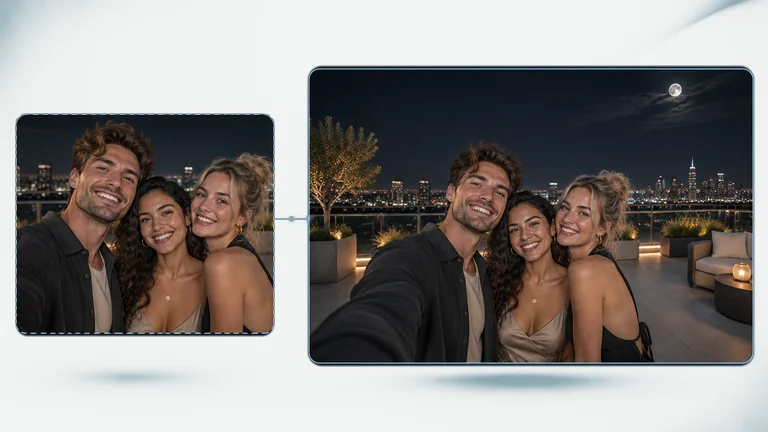
The reference is useful, but the subject sits too close to an edge. Extend the image in the directions you need to create more surrounding space.
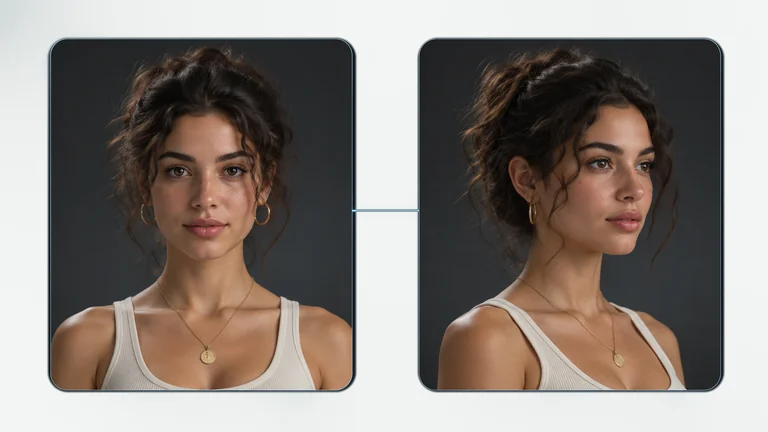
The next scene may call for a side view or a different viewing distance. Start from your reference image and adjust the viewpoint.
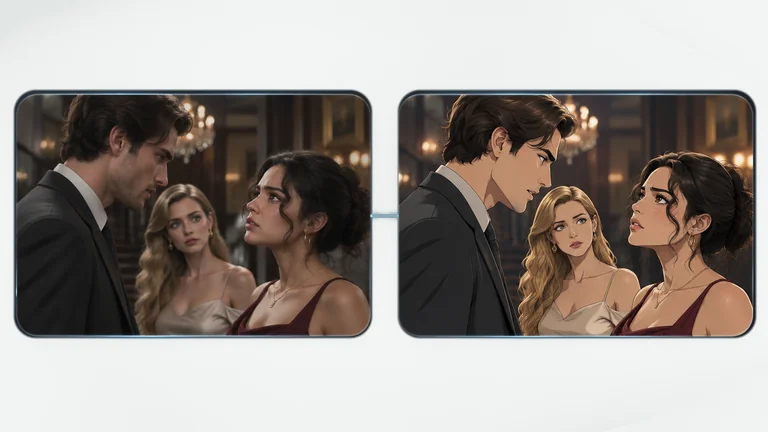
Try an anime treatment of an existing image when you are deciding how a character or setting should look.
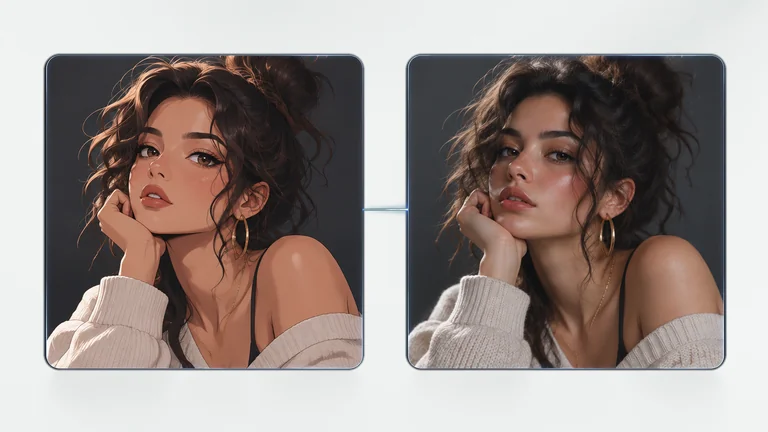
Explore how a drawn character could look in a realistic visual style before choosing a direction for the production.
Video editing changes the content of a clip. Video extension starts from an existing clip to generate what happens next. Use timeline editing to arrange and trim your selected footage.
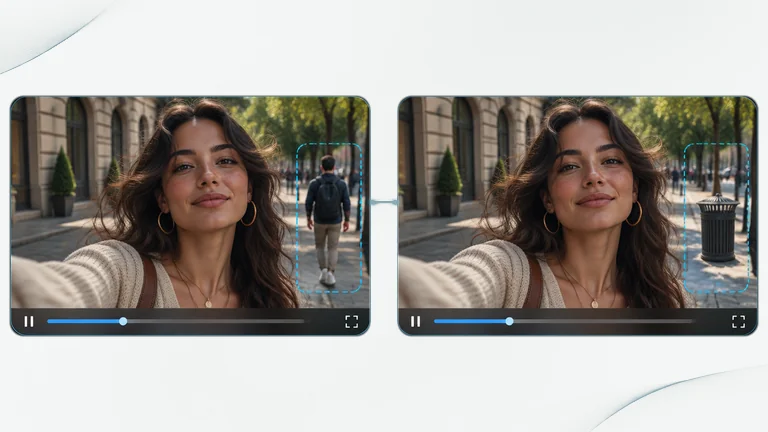
Bring a video and describe the content you want to change. Add image, video, or audio references when the selected mode calls for them.
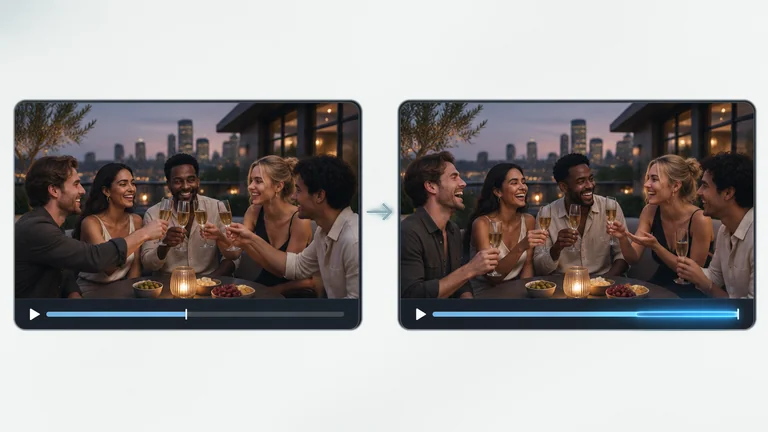
When a useful moment ends too soon, start with that clip and describe how you want the action to continue.
Generate speech from text, reuse a trained voice, or create audio with a written brief and optional references.
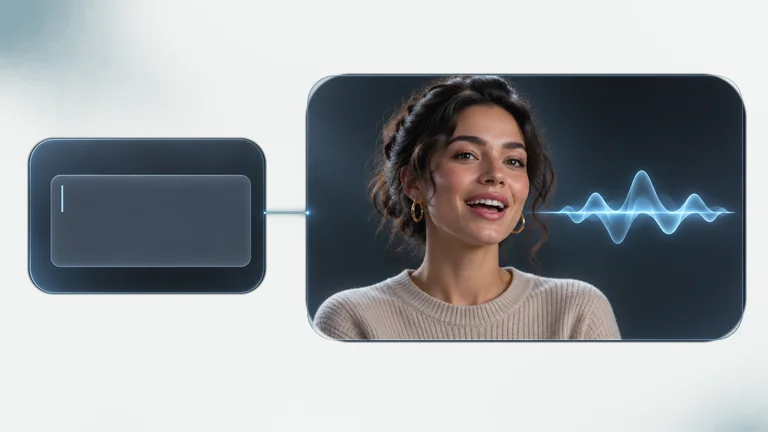
Enter dialogue or narration, preview a voice, and adjust how the text is spoken.
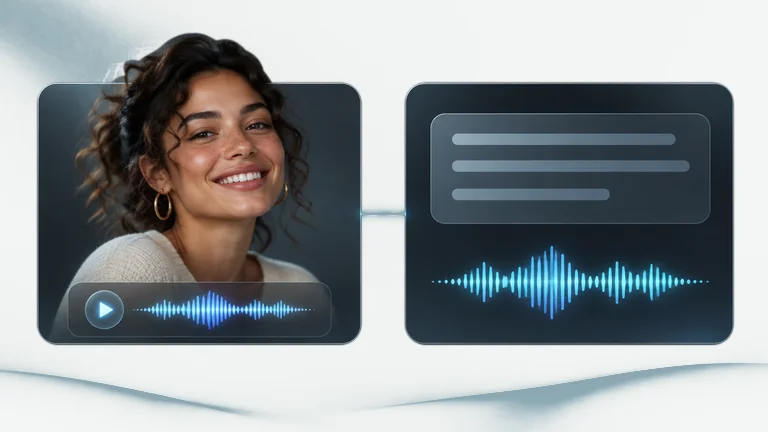
Choose a successfully trained voice and enter the next piece of dialogue. This tool uses your prepared voice to generate new speech.
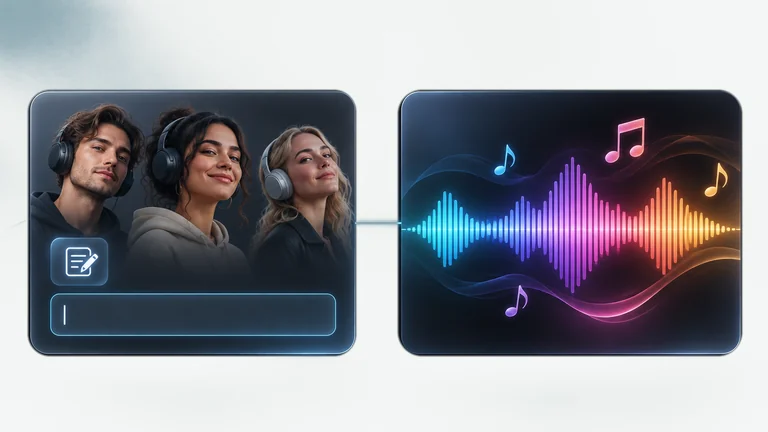
Start with a written audio brief. Add an image or audio references when they help explain your direction.
Bring the image, video clip, or dialogue you want to work on.
Mark an area, choose a direction, describe an action, or select a voice. Each tool has its own controls.
Check the generated result against your character, setting, and story before using it in production.
Choose the tool and settings that fit your material.
No. You can start with an existing image, a video clip, or text for speech. Choose a tool for that specific task.
AI video editing generates changes to video content from your instructions and references. Timeline editing arranges clips, trims their duration, and adjusts the sequence and pacing.
Voice cloning here lets you select a voice that has already been successfully trained and enter new text. Prepare the trained voice before using this tool.
Check the selected tool and generation settings for the applicable credit cost before submitting. Free timeline editing does not mean AI generation is free.
Review it first. Check visual continuity, motion, or pronunciation as appropriate, then choose suitable results as references or material for your next production step.
Choose a tool for your image, video, or audio task.