AI Characters Keep Changing? Check the References First
On this page
A face changes, a jacket changes colour, or two people look alike. These problems need different fixes. Learn how to select character references in Panco and check them across shots.
01Find the detail that changed
If the face and age change, check the character picture. If only the jacket changes, check the outfit description and image version. If the person faces the wrong way between cuts, check positions and camera.
Pause on a clear frame and compare it with the reference. Note a concrete difference, such as “The dark cardigan became a light coat.” Then fix that part.
02Choose one character and reuse it
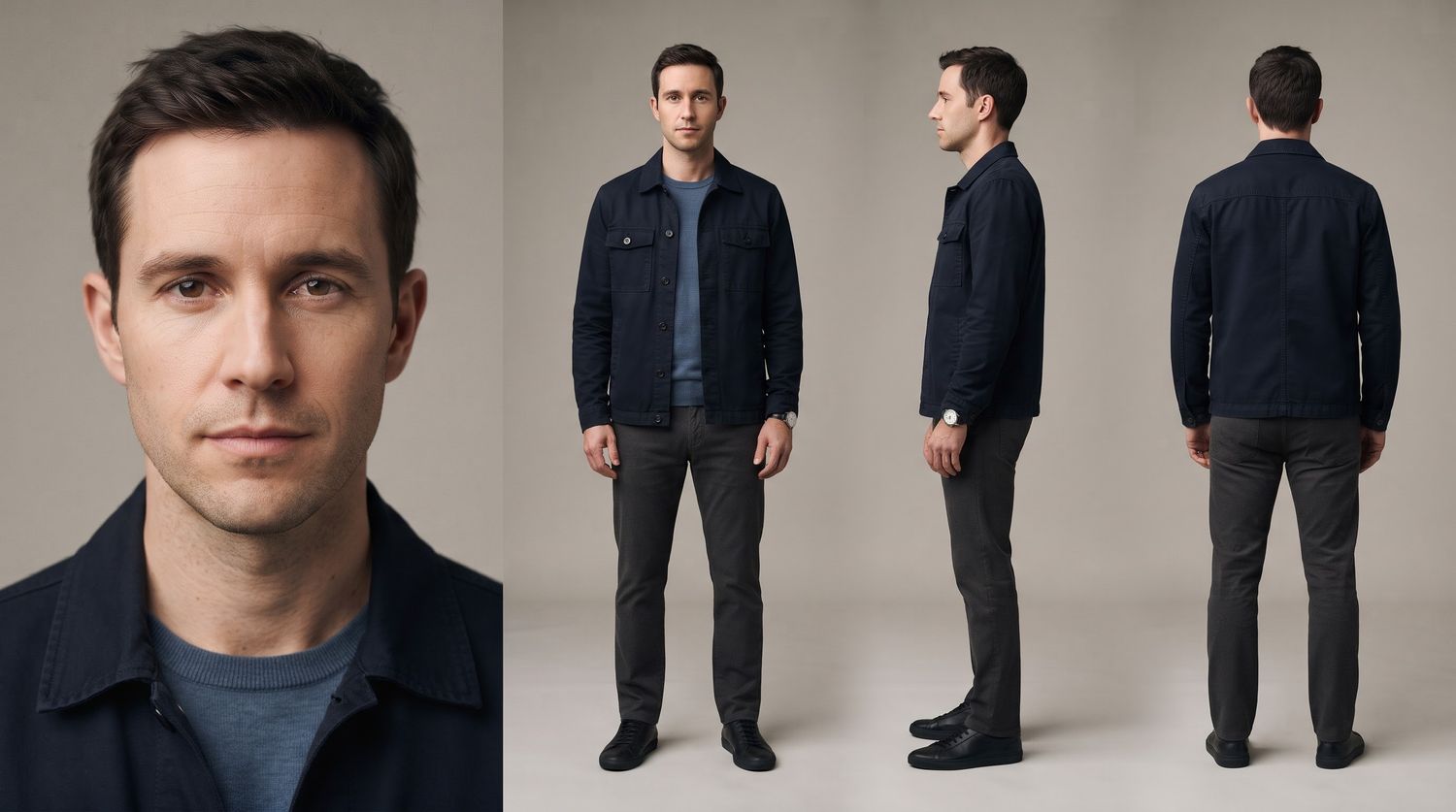
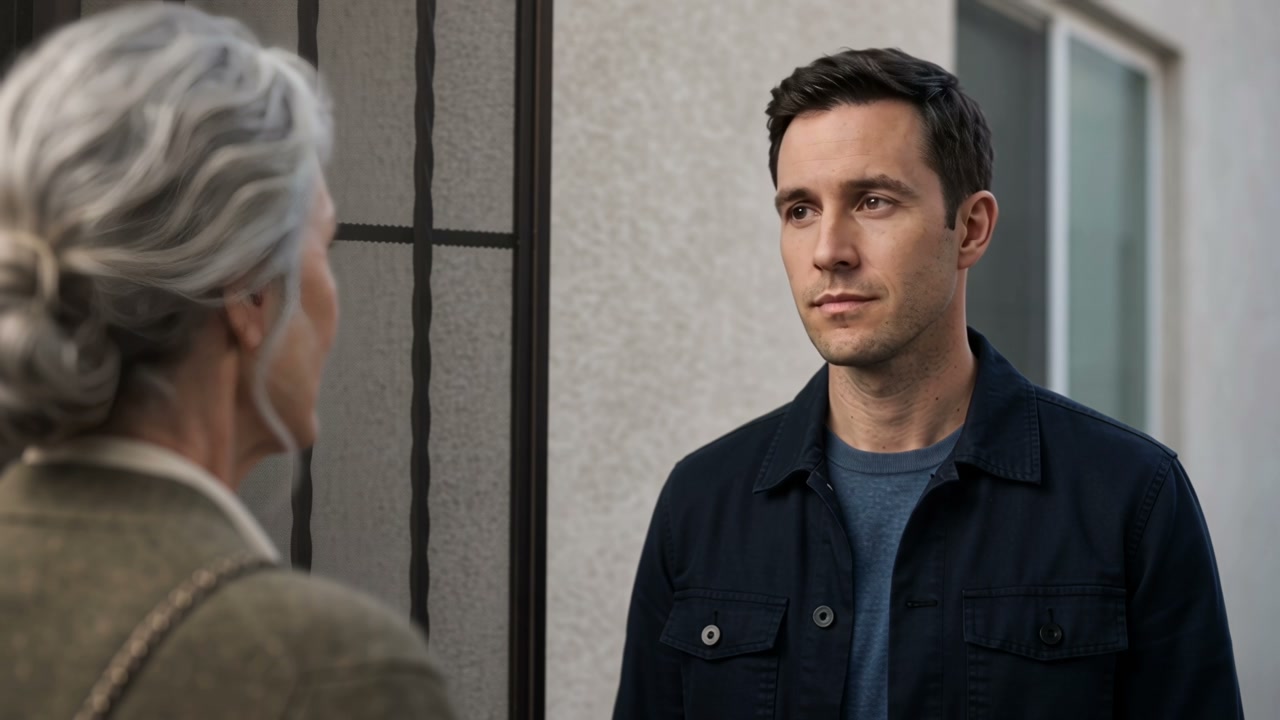
Compare the son’s reference with the video: short hair, a dark blue jacket and a blue inner shirt.
Visual references throughout: 〖@Son〗. 〖@Son〗 stands below the three-tiered concrete steps, facing north inside the door, with hands hanging by the sides.Link the approved picture to the character and select it with @ in each shot. Check new side views against it. Save different outfits as clearly labelled versions.
03Separate each person’s reference and action
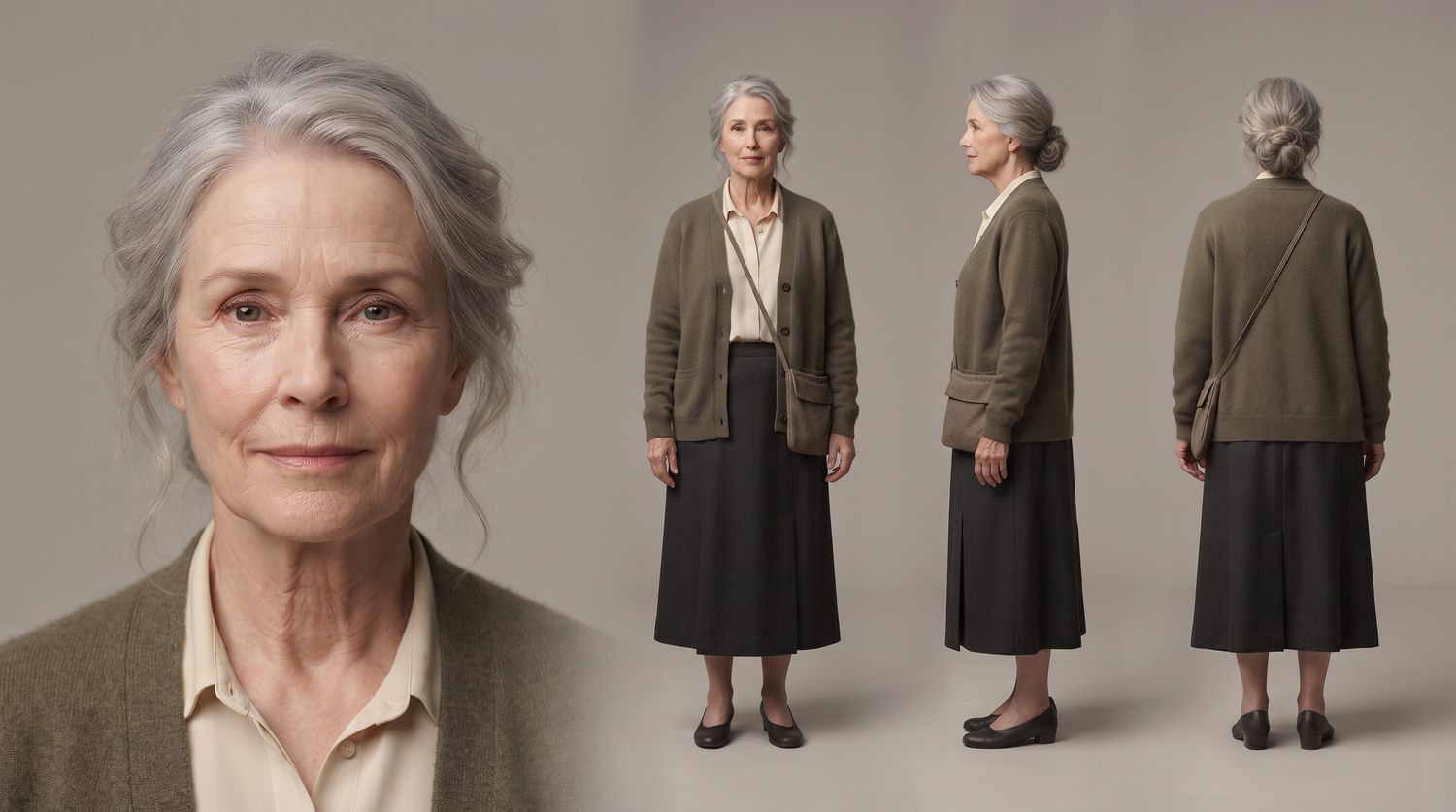
Choose a separate picture for each person. Name the character before important actions. The prompt below separates where the son and mother stand and who speaks.
Visual material for all time slots: 〖@Son〗, 〖@Mother〗, 【@Apartment entrance-Base】.
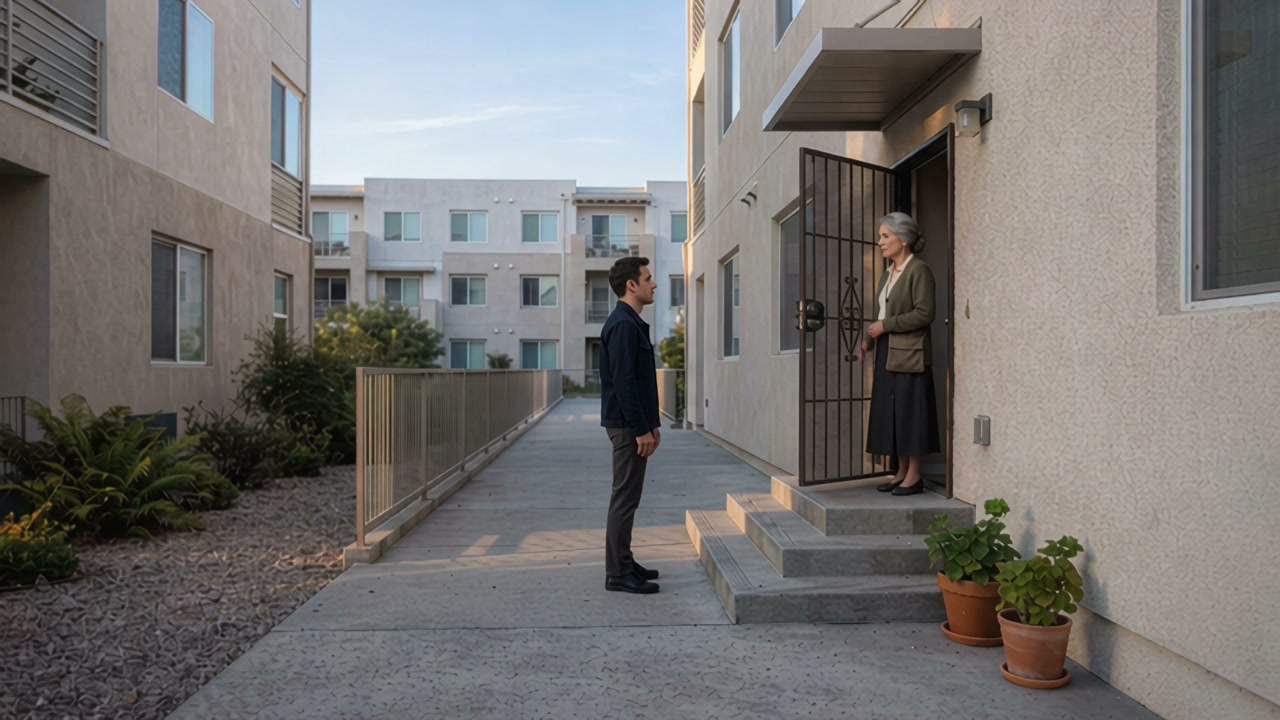
Character positioning: 〖@Mother〗 is above the steps by the door, 〖@Son〗 is below the steps, facing each other.
Speaker: 〖@Mother〗 looks at the son and gently advises him, body leaning slightly forward.
Listener: 〖@Son〗 looks at the mother, lips closed, nods lightly once, hands hanging by the sides.
Camera: Medium shot of the two from the west axis, fixed position.
Continuity: Maintain the hairstyle and clothing of both characters, do not switch positions, do not add other characters. No subtitles or on-screen text.
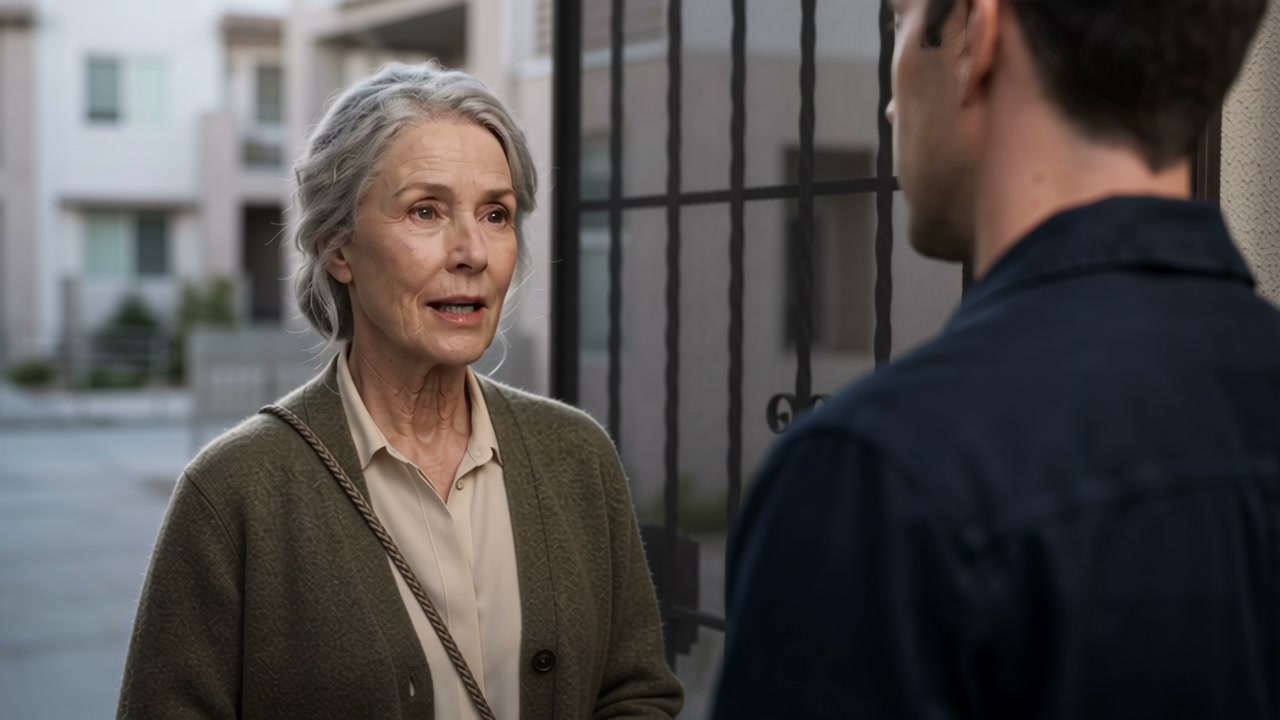
Check that the pictures are not swapped. While the mother speaks, the son listens and nods. Look for mixed faces, exchanged clothes or the wrong person moving their mouth.
04Check position, size and light
A correct face can still look pasted into the room. Reuse the location image and say where the person stands. Check their size, feet and light direction.
Here the mother stands by the door, the son below the steps, in morning side light. If needed, make a combined still first and fix the positions before adding movement.

05Watch beyond the first frame
Version A used a short text. Version B added two character pictures, a location picture and detailed instructions. Compare the cardigan, jacket and doorway with the references.
Watch turns, walking and cuts too. Mark the stable part of a clip for editing, then decide which missing shot needs another attempt.
06Start with an easy shot
Start with an approved character picture and a simple front or three-quarter view. Reuse it when adding turns, back views or another person. Fix a bad still before generating video.
Follow script, elements, storyboard and video in Panco. Compare neighbouring clips on the canvas, then check clothes, gaze, position and light across the cuts.
Seedance Prompts: Fix Unclear Actions, Camera Moves and DialogueHow to Make a Short Drama with Seedance: References, Shots and PromptsExplore the script workflow07Check all views of an outfit
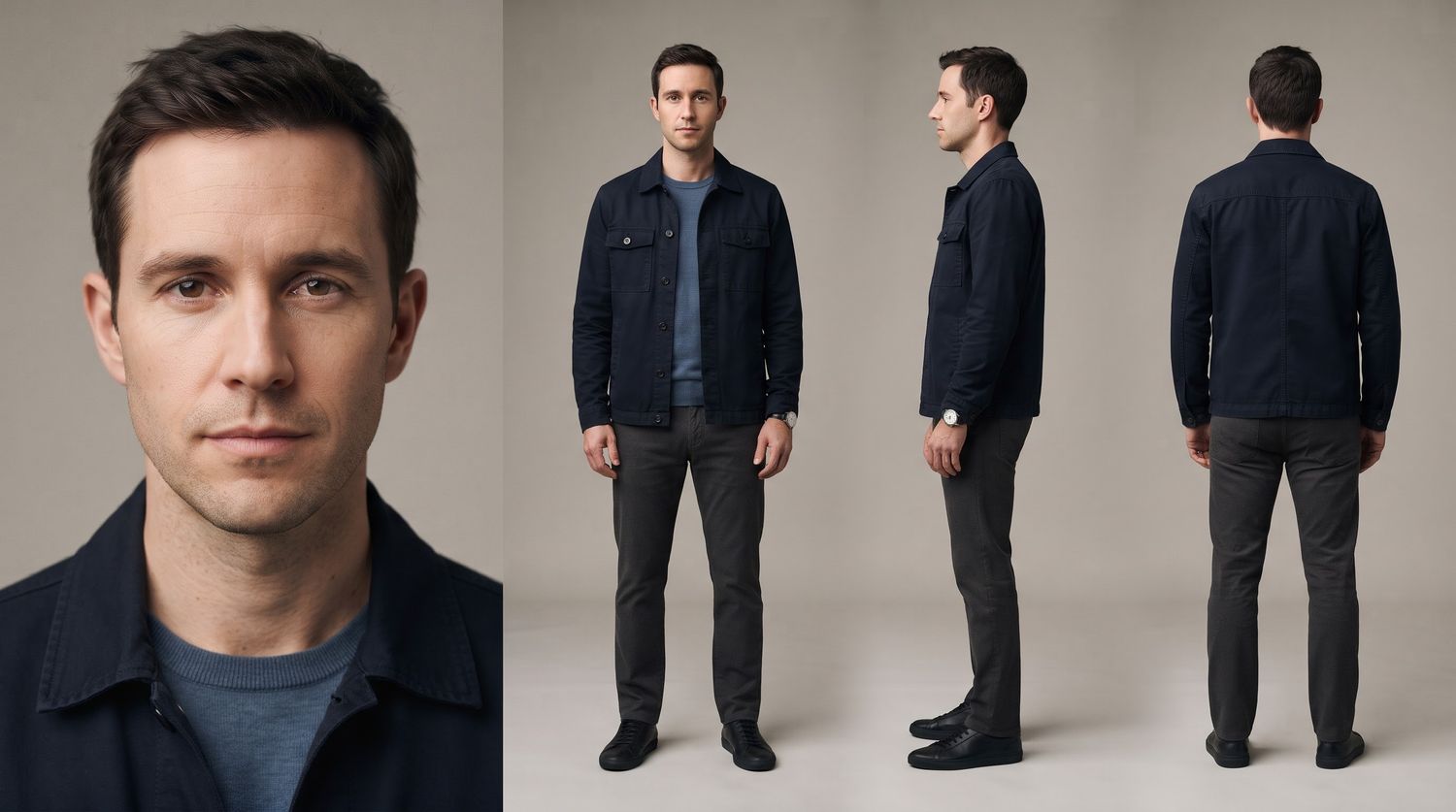
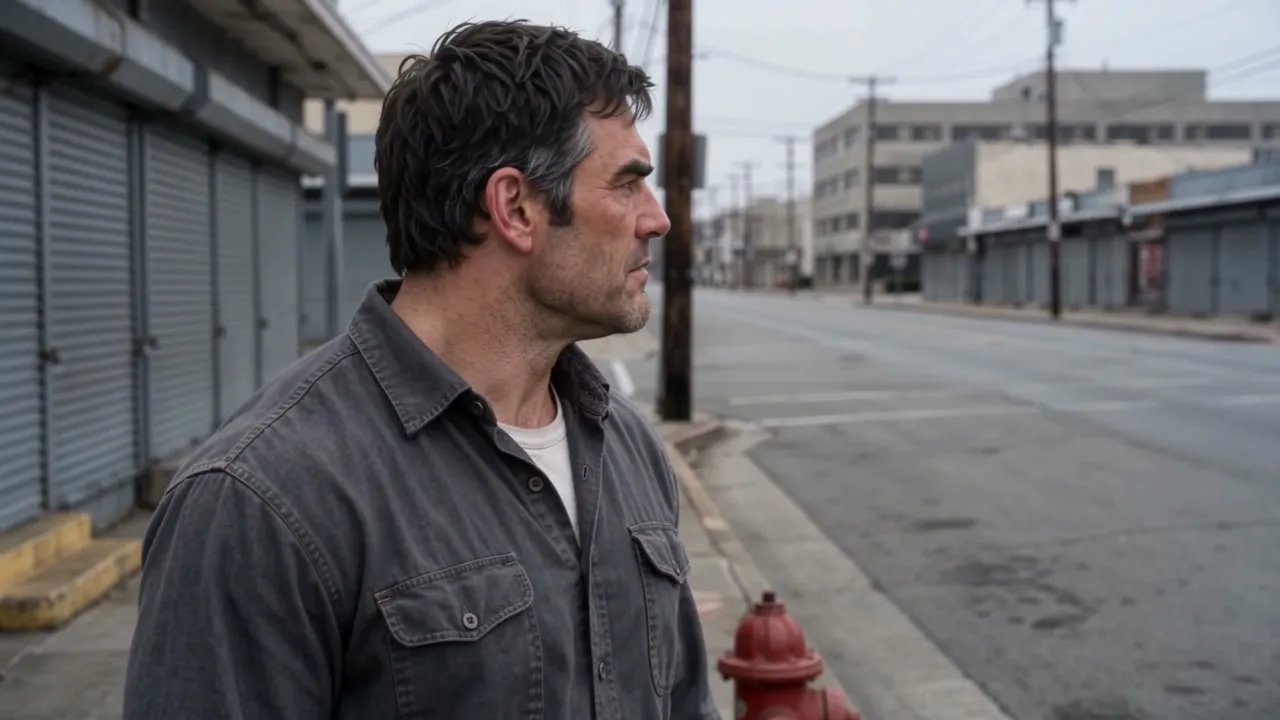
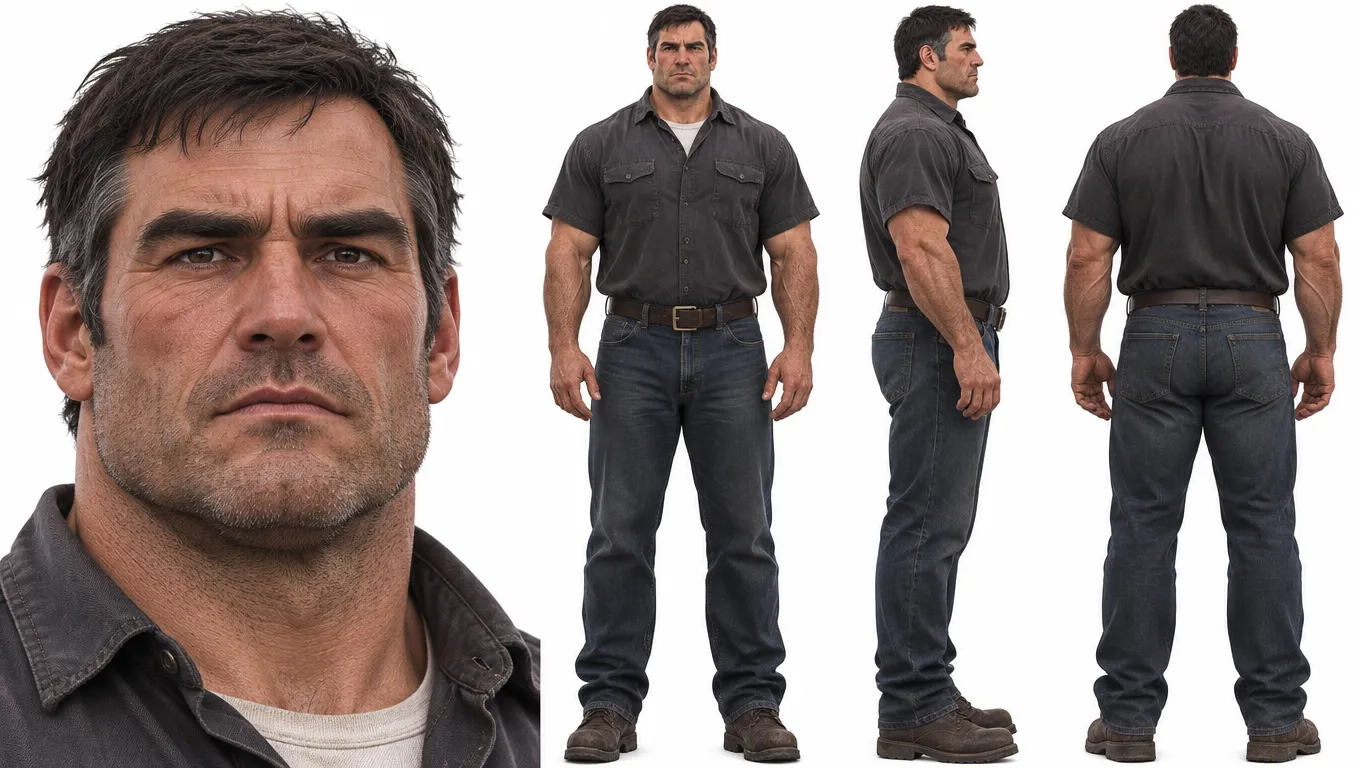
Compare the protagonist’s frame from the 13-second reveal with the approved character sheet. These show a video result and its character reference, not an outfit-edit before-and-after pair.
Suggested prompt · adapt before use
Create a new character sheet for a middle-aged man with short dark hair and light stubble, wearing a charcoal-gray short-sleeve button-up shirt over a white undershirt, dark trousers and dark boots. Place a neutral face close-up on the left and full-body front, side and back views on the right. Keep facial structure, hair, collar, sleeves, trousers and shoes consistent across every view. Arms rest naturally at the sides. Balanced body proportions, plain white background, soft even lighting, realistic skin texture. No text, logos or watermark.Check the face, hairline, collar, trousers and shoes across views. Save separate references for different outfits and verify which one each video task selects.
08Character reference questions
Is “keep the character consistent” enough?
Select the right character picture too. Name the character in important actions, then check the face, hair and clothes.
How many pictures do I need?
Start with one clear reference. Add angles when needed, checking that the age, hair and outfit agree.
Why do wide shots look different?
With fewer facial details, hair, clothing and body shape matter more. Compare nearby shots and try a clearer full-body reference.