Seedream 5.5 for Motion Comics: Edit Frames, Props and In-Scene Text
On this page
A storyboard frame already has the right faces, camera angle and lighting, but a jacket has the wrong color and a prop needs replacing. Keep the approved image and change one detail at a time. The Seedream 5.5 guide emphasizes precise multi-turn editing, transparent and semitransparent assets, small text and realistic texture. This tutorial applies those capabilities to a cockpit scene, producing an approved frame, saved revisions and a review checklist. Panco is preparing to launch 5.5; use the steps below once that version appears in the model selector.
01Where Seedream 5.5 fits in short dramas and motion comics
Precise multi-turn editing helps when a frame is nearly ready: preserve the characters and composition while changing clothing color, replacing a prop or removing an unwanted object. The guide emphasizes stable local edits and detail retention across revisions. Make one change per round, compare it with the last accepted image, then continue.
RGBA can provide transparent and semitransparent assets such as a jade pendant for a period drama or a glass badge for a science-fiction comic. Small-text rendering serves letters, signs, instruments and title artwork. Realistic texture applies to skin, fabric and environmental lighting in realistic dramas.
Panco organizes characters, locations, props and shots. Seedream generates and edits still images. Once the storyboard frame is approved, use it as the starting image for a video model to generate the character’s action.
Seedream 5.5 usage guide: capabilities and film examplesSeedream on Panco02Choose the production problem before making another image
Define the deliverable and the one change needed in this round. For motion comics, preserve approved faces and linework. For realistic dramas, also inspect skin, fabric and whether the subject shares the background’s lighting.
| Production problem | Input and edit request | Deliverable and acceptance check |
|---|---|---|
| A jacket or prop is wrong | Upload the approved frame; change one item while preserving faces, framing and background | A revised frame; compare faces, hands, folds and scene edges |
| A pendant or glass badge must be composited | Supply a prop reference and request transparency or a semitransparent material | An asset with a real alpha channel; check on dark and light backgrounds |
| A sign, letter or instrument label is wrong | Specify exact short text, placement and layout; preserve the other regions | Readable prop text; inspect every character at full size |
| Skin and clothing look plastic | Supply subject and lighting references; describe skin texture, fabric and light direction | A texture revision without excessive smoothing or conflicting shadows |
03Start with one candidate frame and a preserve/change list
Use a cockpit frame with the pilot seated on the left, the mechanic standing on the right and a blue console in front. Save it as V0 after checking faces, positions and camera angle. If it does not exist yet, first create it from approved character and location references. Avoid designing a character, changing the setting and correcting text in the same request.
Split the revision into three rounds: V1 changes only the mechanic’s jacket to dark red; V2 replaces only the tool with a reference wrench; V3 changes only the console sign to “BACKUP POWER”. Prepare a clear wrench reference separately. Upload the latest accepted frame for each round and explain that it controls composition while the prop reference controls only the object’s appearance.
04Revise the same storyboard frame in three rounds in Panco
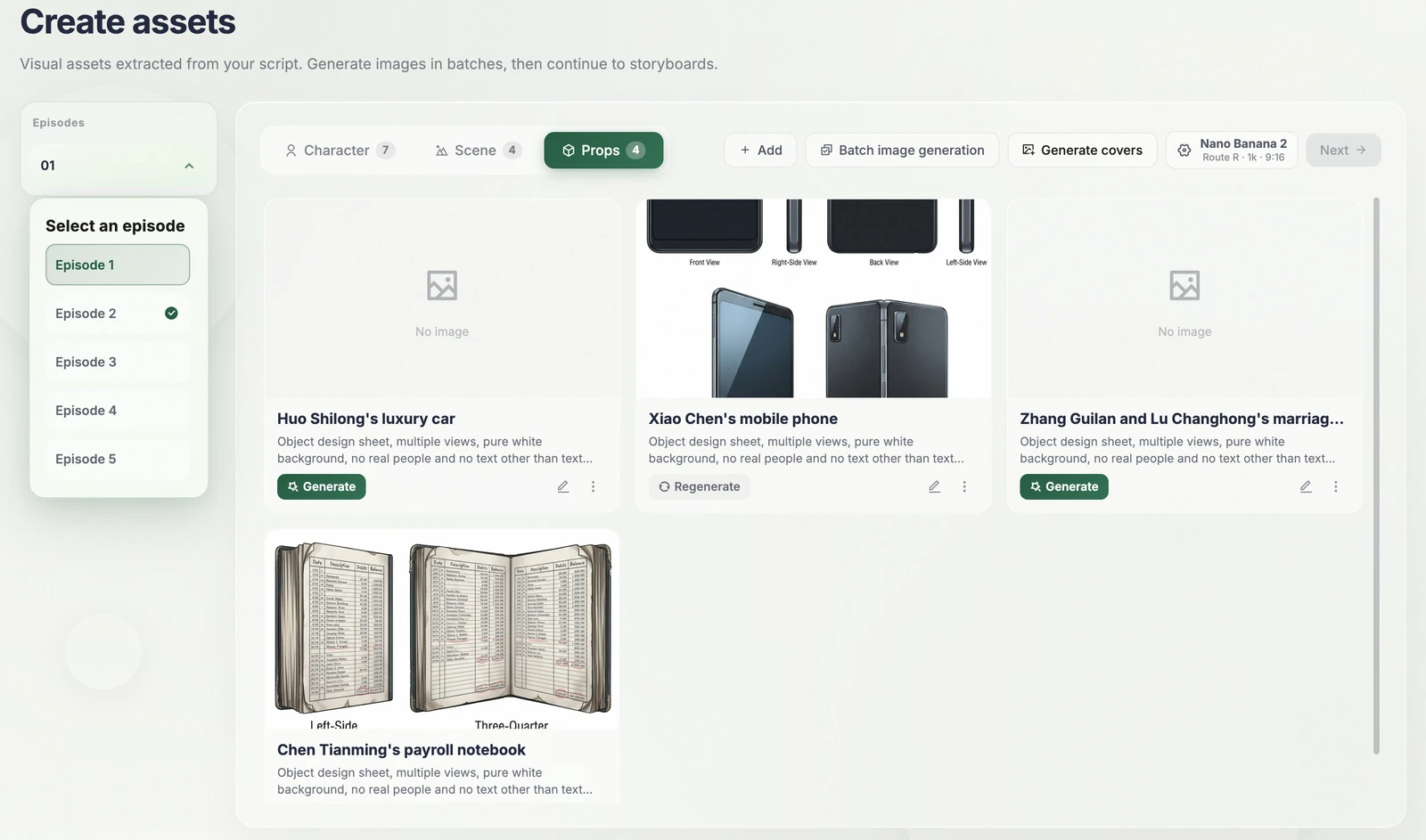
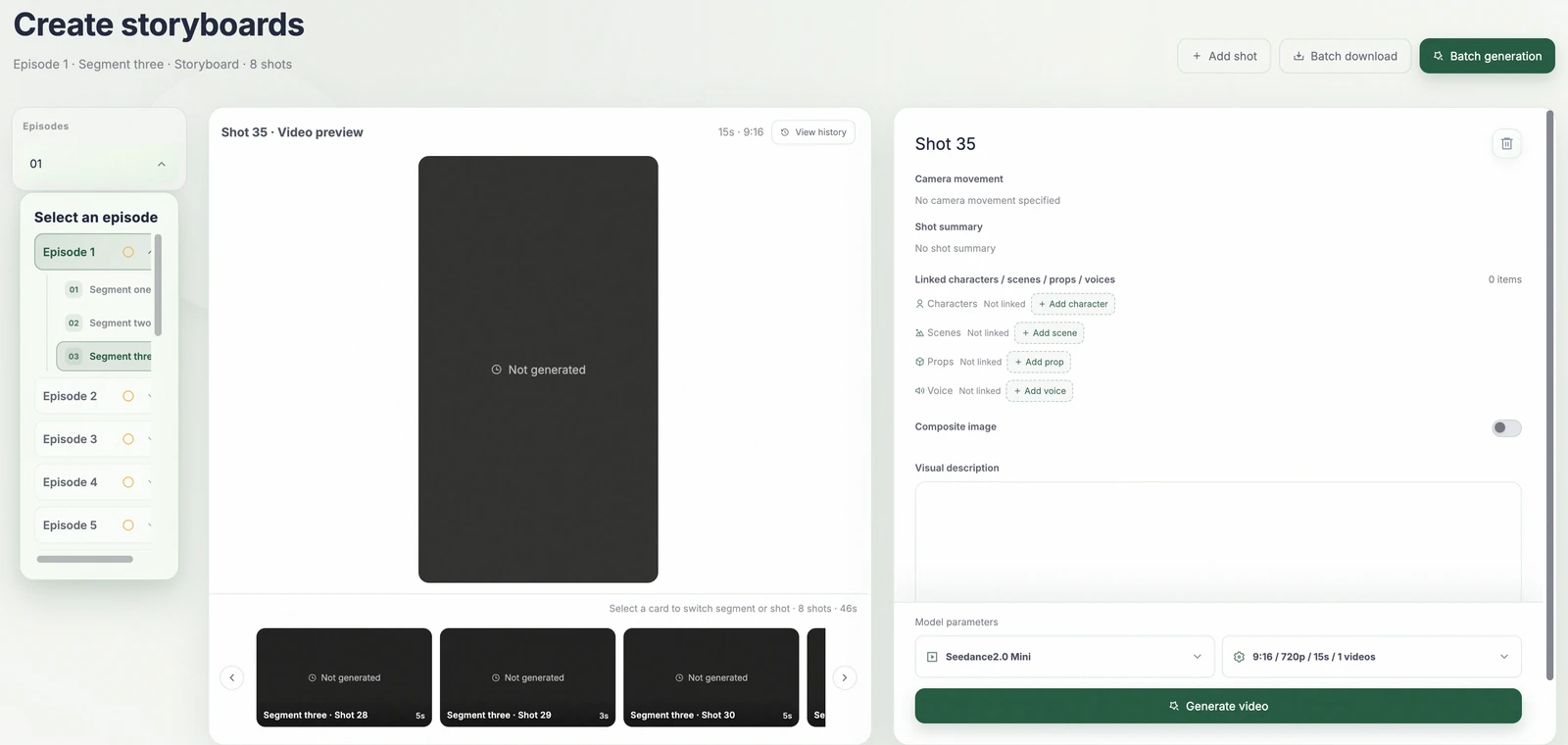
1. Open “Create → Free creation” in the project and set “Creation type” to “Image”. Select Seedream 5.5 once it appears under “Image model”. Before launch, prepare the reference images and a list of individual changes.
2. In an entry supporting reference editing, upload V0 through the reference-image or “Image fusion” input and confirm that its card appears. Change only the jacket color in the first round. Paste the prompt below and specify that the rest of the image stays unchanged.
3. Open “Generation settings”, match the original frame’s aspect ratio, check resolution and the credit estimate, then select “Generate image”. Compare the enlarged result with V0. Save an accepted result as V1 only after checking faces, hands, positions and background for unintended changes.
4. Upload V1 to replace the prop, save an accepted result as V2, then upload V2 to correct the sign. State the preserve list and single change in full each time. Save the final image with its project shot and use it as the starting frame for generating the character’s action.
Image inputs in Free creationLink assets to shots and generate video05First-round prompt: change the jacket and preserve the frame
This prompt covers the first round. For round two, replace the change request with “Replace the tool in the mechanic’s right hand with the wrench in reference image 2, preserving the grip direction and hand structure”, and upload that reference. For round three, request “Replace the console sign with the exact text BACKUP POWER, centered on one line; add no other text”. Always supply the current accepted image instead of relying on memory of an earlier request.
Edit the uploaded two-character cockpit storyboard frame. Reference image 1 is the complete image to preserve in this round. Change only the jacket worn by the mechanic on the right to dark red. Preserve its cut, folds, collar and shading from the blue instrument light. Keep both characters’ faces, hair, proportions, poses, gaze, hands and held tools unchanged. Preserve the pilot’s position and clothing on the left, the console, rear hatch, camera angle, aspect ratio and existing 2D motion-comic style. Add no people, text or props. Do not redesign the background. Output one complete revised storyboard frame, not a before-and-after collage.
06What makes a transparent prop or text edit usable
Treat a transparent prop as a separate task. Supply a pendant reference and request one complete object on a transparent background, preserving holes and semitransparent material. Whether Panco can download a file with alpha depends on the released output path. Check the actual transparency channel and inspect the edges on light and dark backgrounds. A visible checkerboard alone does not prove transparency. If alpha is unavailable, finish the prop design first and prepare the composite asset in a tool that supports transparency.
Start text edits with short signs: “Upper-right console label, the exact text BACKUP POWER on one line, white letters on dark blue; preserve the border and instruments”. Inspect every character, then check legibility at the final viewing size. Add long dialogue, subtitles and credits that must be exact during editing. Avoid repeatedly regenerating a whole scene to repair one letter.
07Accept the edit only if the approved parts still work
Compare V0 with each revision side by side, checking faces, hands, clothing folds, props, background and text. A correct jacket color with a changed face fails review. Correct text that moves a character also fails. Check text character by character, alpha and edges for transparent assets, and skin texture and consistent shadows for realistic images.
If the image drifts, return to the latest accepted version and reduce the request to one change with explicit preservation instructions. Seedream 5.5’s deliverable here is an approved still frame for the next production step. Then try a small head turn or glance with a video model and check characters and props in motion. Do not use animation to hide errors in the source frame.
08Seedream 5.5 questions for motion-comic production
How should the production focus change from Seedream 5.0 Pro to 5.5?
The official 5.0 Pro page emphasizes dense information layouts, spatial annotations and sketch-guided edits, which help with early composition planning. The 5.5 guide places further emphasis on precise multi-turn editing, fully transparent and semitransparent assets, small text and realistic texture. In a Panco motion-comic workflow, keep approved characters and frames, then revise clothing, replace props and correct signs in separate rounds. Create transparent props for compositing, or refine skin and fabric for realistic dramas. The focus moves from designing a frame toward finishing its specific production details.
How do I replace a held prop with Seedream 5.5 while preserving the face, grip and composition?
Upload the accepted frame as image 1 and the prop reference as image 2. Specify: “Image 1 defines the people, camera angle, lighting and style. Replace only the tool in the mechanic’s right hand with the wrench in image 2, preserving the existing grip position, direction and object size. Keep faces, clothing and background unchanged.” Leave clothing and sign revisions for separate rounds. Enlarge the result to check that fingers grip the handle, the object does not pass through the hand and the lighting matches. If the grip breaks, return to the previous accepted frame and correct that interaction on its own.
How do I correct text on a sign or letter in a motion-comic frame?
Specify the exact wording, location and layout together. For an uploaded console frame, write: “Edit only the upper-right sign. Use the exact words BACKUP POWER, centered on one line in white on dark blue. Preserve the sign border, instruments, characters and lighting.” Start with short text. For a letter, identify the sentence that must be readable and say whether to preserve the surrounding area. Check every character at full size, then check readability at the final viewing size. For another text revision, upload the current accepted frame and edit only that text area.