Wan 3.0 for Short Dramas: References, Video Shots and Scene Editing
On this page
Wan 3.0 turns a shot description into video: a character enters a room, takes an object or turns toward a sound. It accepts text, starting or ending frames, and multimodal references. This guide starts with one reaction shot in a suspense drama, then adds the surrounding action. The deliverable is three usable video clips that you can edit into a scene.
01What Wan 3.0 does, and when to use it in a short drama
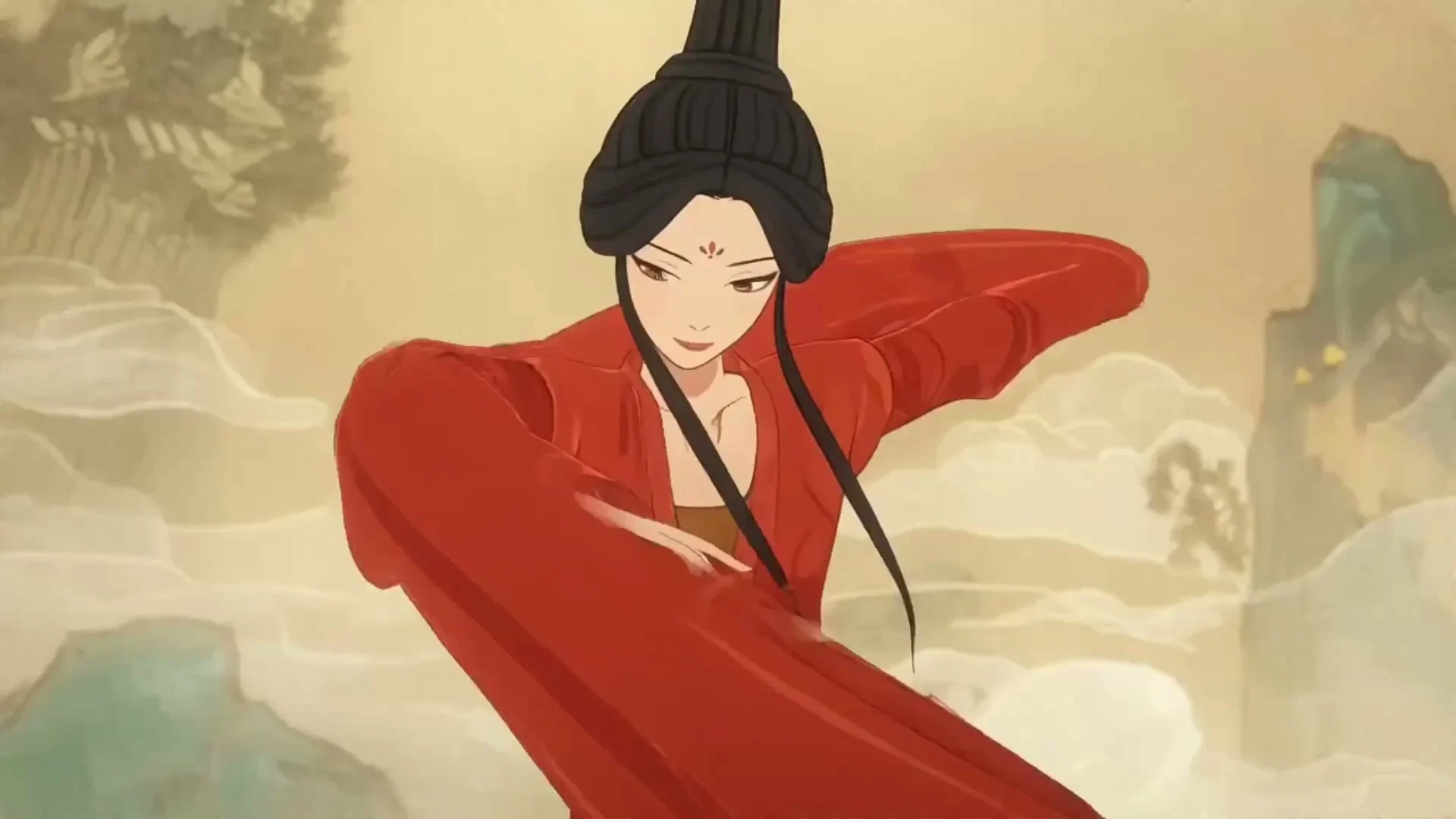
Wan 3.0 is a video generation model. Alibaba Cloud lists text-to-video, first/last-frame generation, all-in-one references and video with sound. Both the standard and Prime versions support these input types, with an official duration range of 2–30 seconds. Prime is labelled the faster version; available duration, resolution and credits in Panco depend on the submission panel.
A useful starting task is generating an acted shot from established character and scene references. Text alone helps explore mood. Separate character, location and prop images communicate several visual constraints. A completed storyboard image provides a defined first frame from which the action can begin.
The same methods can serve motion comics, but style, clothing and props still need inspection across shots. A 30-second limit does not mean an entire episode is finished in one generation. Panco organizes scripts, assets, shots and editing; Wan supplies video clips within that workflow.
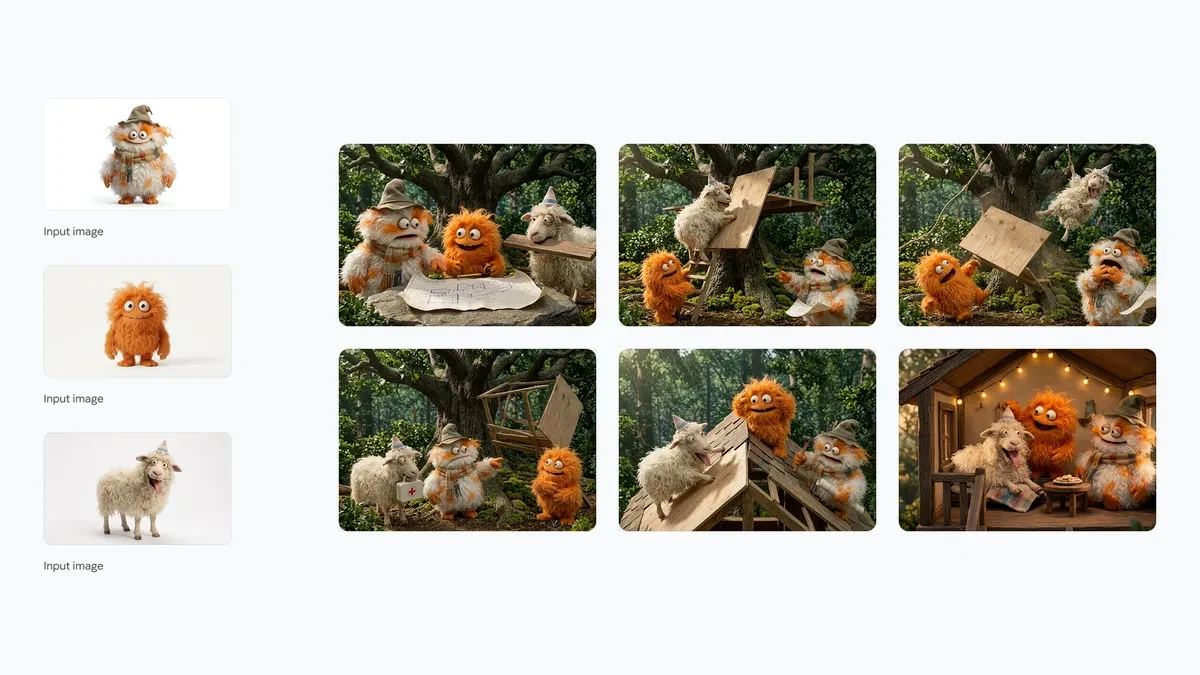
Official Wan input types and specificationsWan on PancoWan showcase supplying the cover image02Choose the input from the material you already have
In this scene, a courier receives an envelope on a station platform, notices its broken seal and turns toward approaching footsteps. Establish the character and envelope before generating their recurring appearances.
| Available material | Choose in Panco | Intended output |
|---|---|---|
| A sentence describing the scene | Video → Text to video | An establishing shot to explore the night lighting and camera movement |
| Separate character, platform and envelope images | Video → All-in-one reference, when offered | The specified character holding the same envelope on the platform |
| A finished storyboard frame | Video → Image to video or First/last frames | A head-turning action that begins from the chosen composition |
03Prepare one starting frame and a short shot list
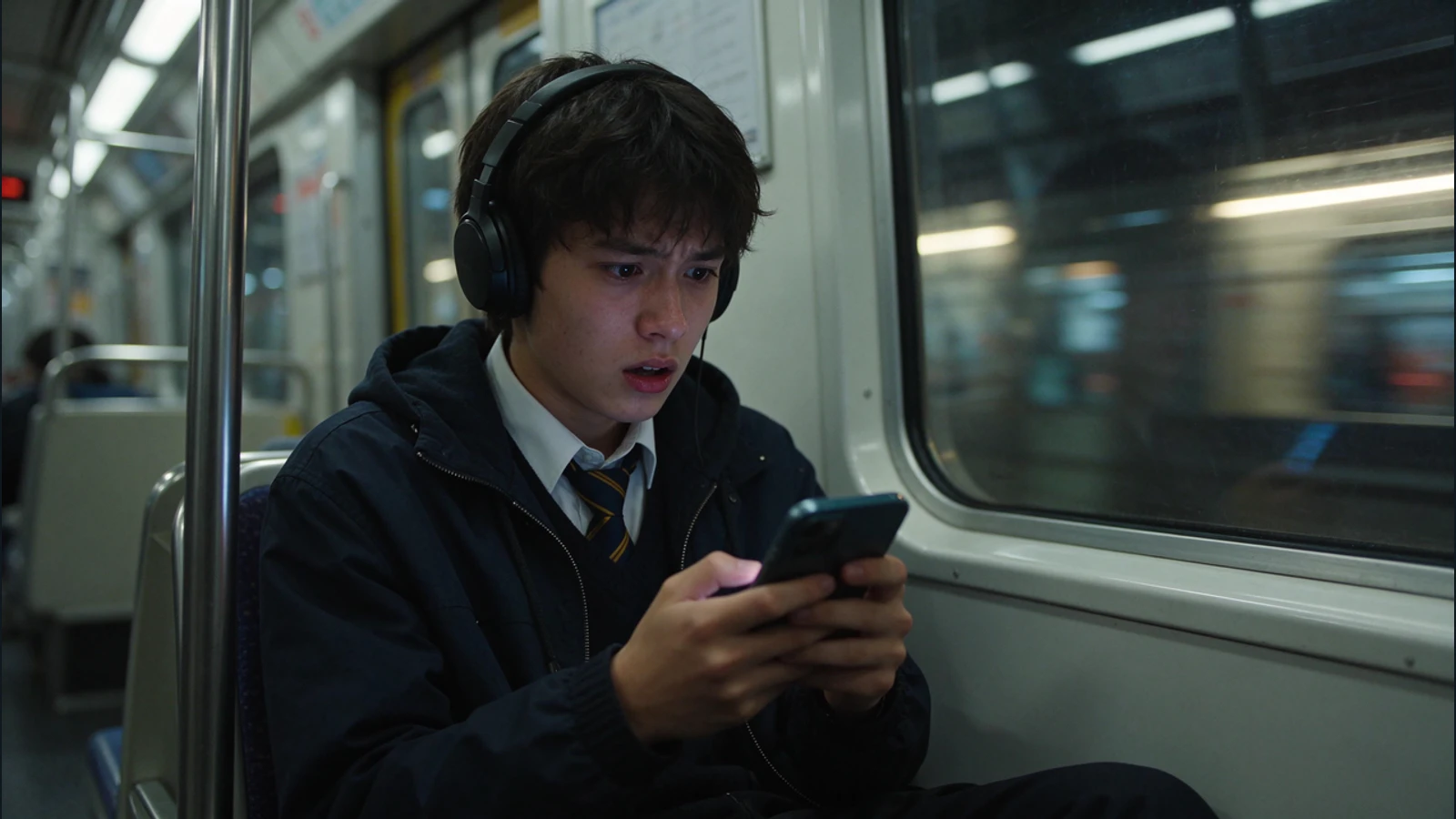
Begin with the reaction shot. Prepare a waist-up image of the courier on the platform: a clear face, a beige envelope in the right hand, and room to turn. Match the intended delivery ratio, such as 9:16 for a vertical drama, so later cropping does not remove the action.
If this frame does not exist yet, establish the character, location and prop in Panco’s project assets, then create the storyboard image. Repeated video generation while the character design is undecided adds avoidable selection work.
List three shots: the handover, the broken seal and the reaction to footsteps. Write what each shot must communicate instead of pasting the entire scene into every prompt.
04Generate the reaction shot in Panco first
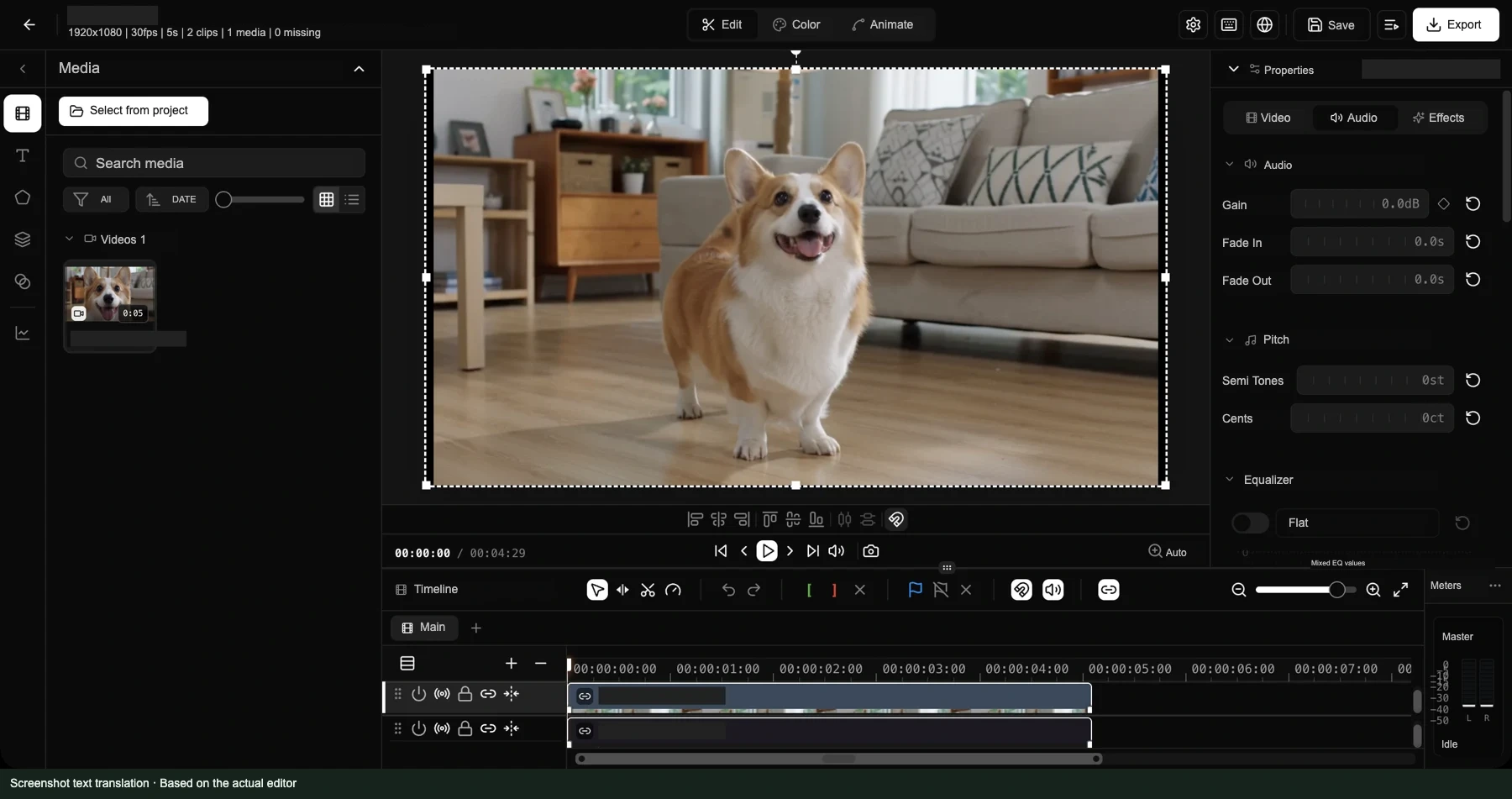
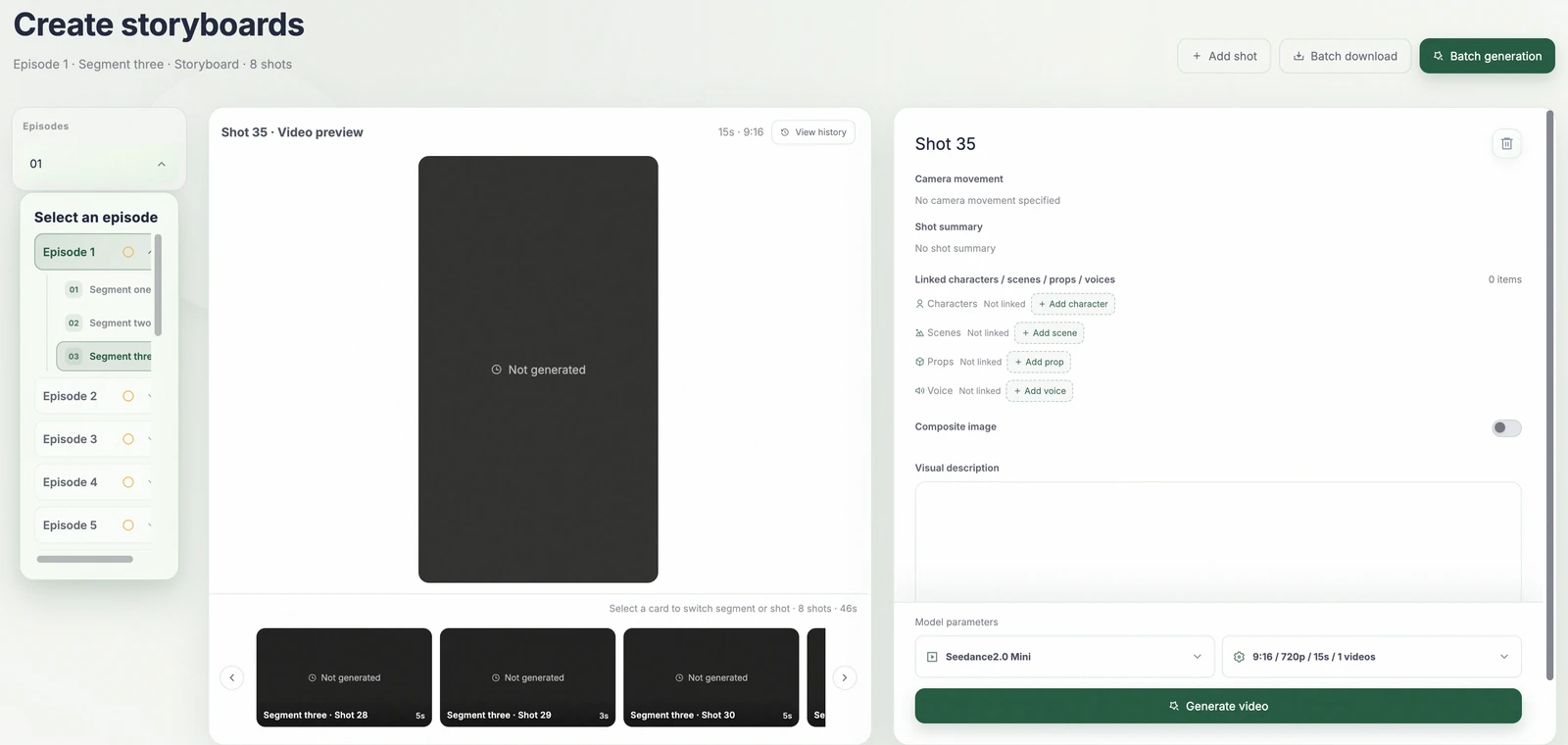
1. Choose the project that will hold the clip. Open “Create → Free creation”, set “Creation type” to “Video”, and select Wan 3.0 or Prime under “Video model”. Start with a single shot; an existing project storyboard can be used for subsequent production.
2. For a finished starting image, choose the offered “Image to video” or “First and last frames” mode and upload it as the first frame. For separate character, location and prop images, choose “Multi-reference” and upload each reference. Wait for the material cards to appear; mentioning a filename does not upload it.
3. Paste the reaction prompt below. Open “Generation settings”, match the image ratio, and select a short available duration, aiming for roughly 5–8 seconds on the first attempt. This is a trial target, not a fixed supported setting. Check resolution, sound options and estimated credits, then select “Generate video”.
4. Inspect the complete action: pause, turn, then look behind. Check the face, envelope and background next. Keep the accepted clip and its settings, then make the handover and seal close-up separately. Avoid adding dialogue, complex camera movement and several performers to the first attempt.
Free creation in Panco05A prompt to adapt: turn toward approaching footsteps
This prompt assumes the uploaded first frame already contains the character and location. Change the clothing, envelope and light to match that image. Submit the three scene shots separately.
Start from the uploaded image of the courier on the station platform. At night, the courier in a dark blue coat holds a beige envelope in the right hand. Pause briefly, then slowly turn the head toward the left rear after hearing footsteps behind, ending with the gaze held off-screen. Medium close-up, fixed camera, no cuts. Preserve the reference face, hairstyle, coat, right-hand envelope grip and cool white platform lighting. The envelope stays in the right hand and does not obscure the face. No new characters or subtitles.06Define a usable result and fix only the failed part
The deliverable is three usable video clips plus their inputs and settings. Arrange handover, seal and reaction in Panco’s editor. Watch without sound first: check which hand holds the envelope, whether the seal damage matches and whether the turning direction connects. Then check the audio cuts and remove dead time.
Wrong from the first frame: inspect the reference and upload mode. Correct at first but the face changes during the turn: reduce the rotation and occlusion. Correct clips that do not connect: add an envelope close-up or reaction insert instead of regenerating the entire scene. Generation consumes credits; editing and export follow Panco’s current terms.
07Wan model choices and short-drama production questions
Should I choose Wan 3.0 or Prime?
Choose Prime when a deadline is close or you need quick feedback on actions and several shot variations. For a flexible schedule and a full episode of clips, consider the standard version first, then plan the budget using Panco’s credit estimate. Both versions support text-to-video, first/last frames, all-in-one references and video with sound. Their official output specifications are the same: 480P, 720P or 1080P, 2–30 seconds and 30 fps. Prime’s main distinction is speed: the provider describes substantially faster generation while maintaining high quality, and its published API rates are higher than the standard version’s. Choose Prime to accelerate production and revisions, not to unlock a higher resolution; the standard version can also produce finished 1080P shots. Check Panco’s actual credit estimate before submitting.
How do I use Wan’s all-in-one references to keep characters, costumes and props consistent across shots?
Upload a fixed set of character, location and prop images in Panco’s all-in-one reference input and reuse them for each shot. Assign their roles using the actual upload order: “Image 1 defines the courier’s face, hair and dark-blue coat. Image 2 defines the platform. Image 3 defines the beige envelope. Change only framing and action; preserve the character’s appearance, clothing and envelope design.” If you add a camera-movement video, specify: “Use video 1 only for camera movement, not its people or setting.” Wan’s all-in-one mode combines image, video and audio references. Assigning each source a purpose helps avoid importing unwanted costumes or backgrounds from a motion reference.
Can Wan 3.0 generate spoken lines, and how do I keep only dialogue and ambient sound?
Yes. Wan 3.0 natively generates dialogue, background music and sound effects. For a shot with sound, specify the speaker, exact words and delivery: “The courier says quietly: ‘The seal has been broken.’ Synchronize the lips. After speaking, pause, then look behind.” For two speakers, label each line with its character instead of pasting unassigned dialogue. To keep the suspenseful atmosphere, add: “Keep only dialogue, footsteps and platform ambience. No background music or narration.” After choosing Wan in Panco, check the available sound settings before submitting. Listen for the correct words, speaker order and pauses before placing the clip in its shot.