Join Three AI Clips into One Scene with Panco’s Free Editor
On this page
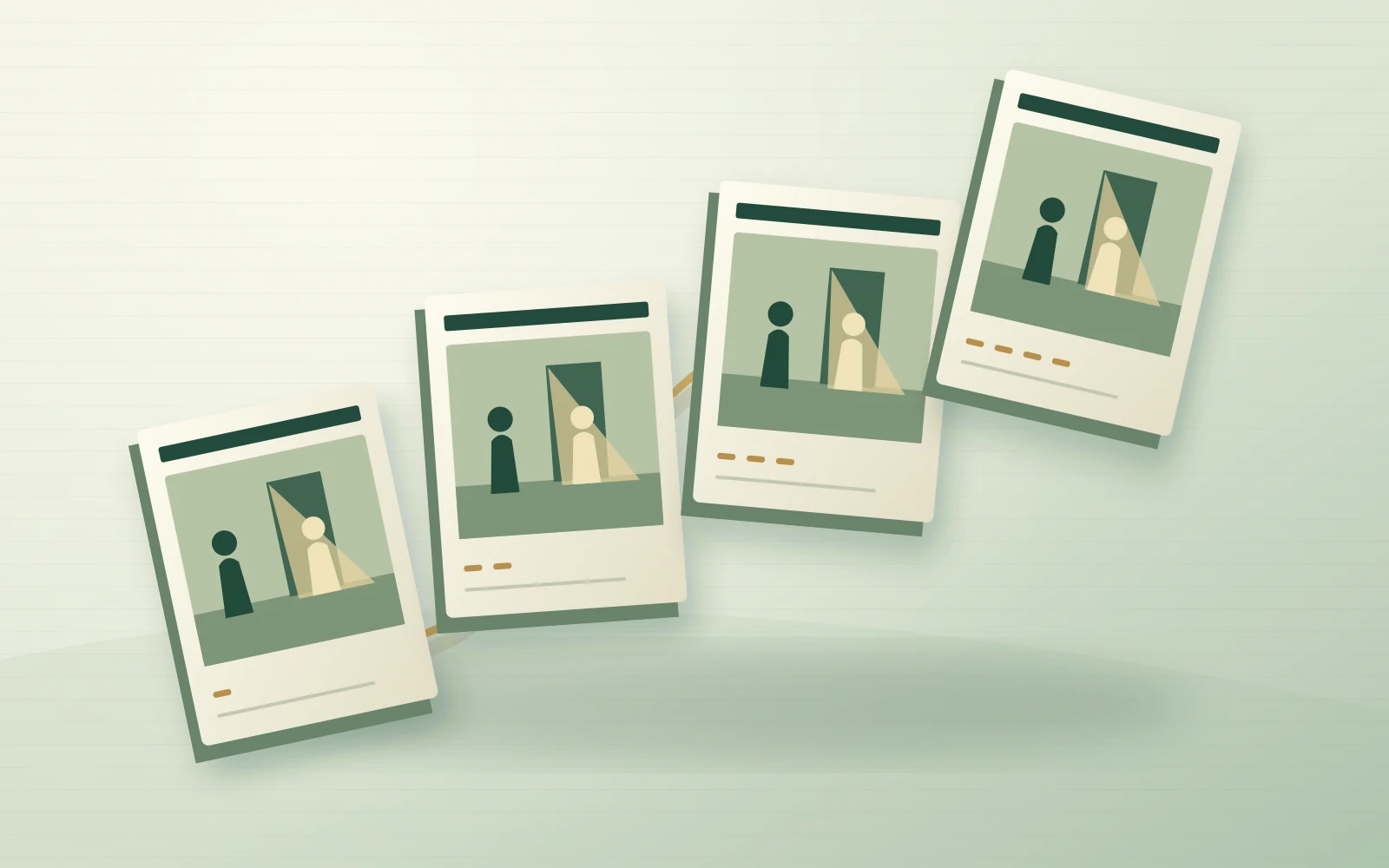
You have generated three clips: a mother giving advice, her son nodding and the son leaving. Played one after another, they may spend too much time waiting for the action to start. In Panco, you can keep the useful parts and join them into one scene. The example timings below are a practice plan you can adapt to your own footage.
01Decide which part of each clip to keep
Open the project containing the three videos, go to Clips and create or open an edit. Use Media → Select from project to choose the videos, then drag them onto one video track in A, B, C order.
Use this plan to practice. The timings are examples. In your own footage, find where the mother finishes her line, where the son nods and where he leaves the frame. Use those moments to choose each clip’s in and out points.
| Clip | Source duration | Keep | Position in the edit |
|---|---|---|---|
| A: the mother gives advice | 6 seconds | Seconds 1–5: 4 seconds | 0–4 seconds |
| B: the son nods | 5 seconds | Seconds 0–3: 3 seconds | 4–7 seconds |
| C: the son leaves | 7 seconds | Seconds 1–6: 5 seconds | 7–12 seconds |
02Trim the beginning and end by dragging the edges
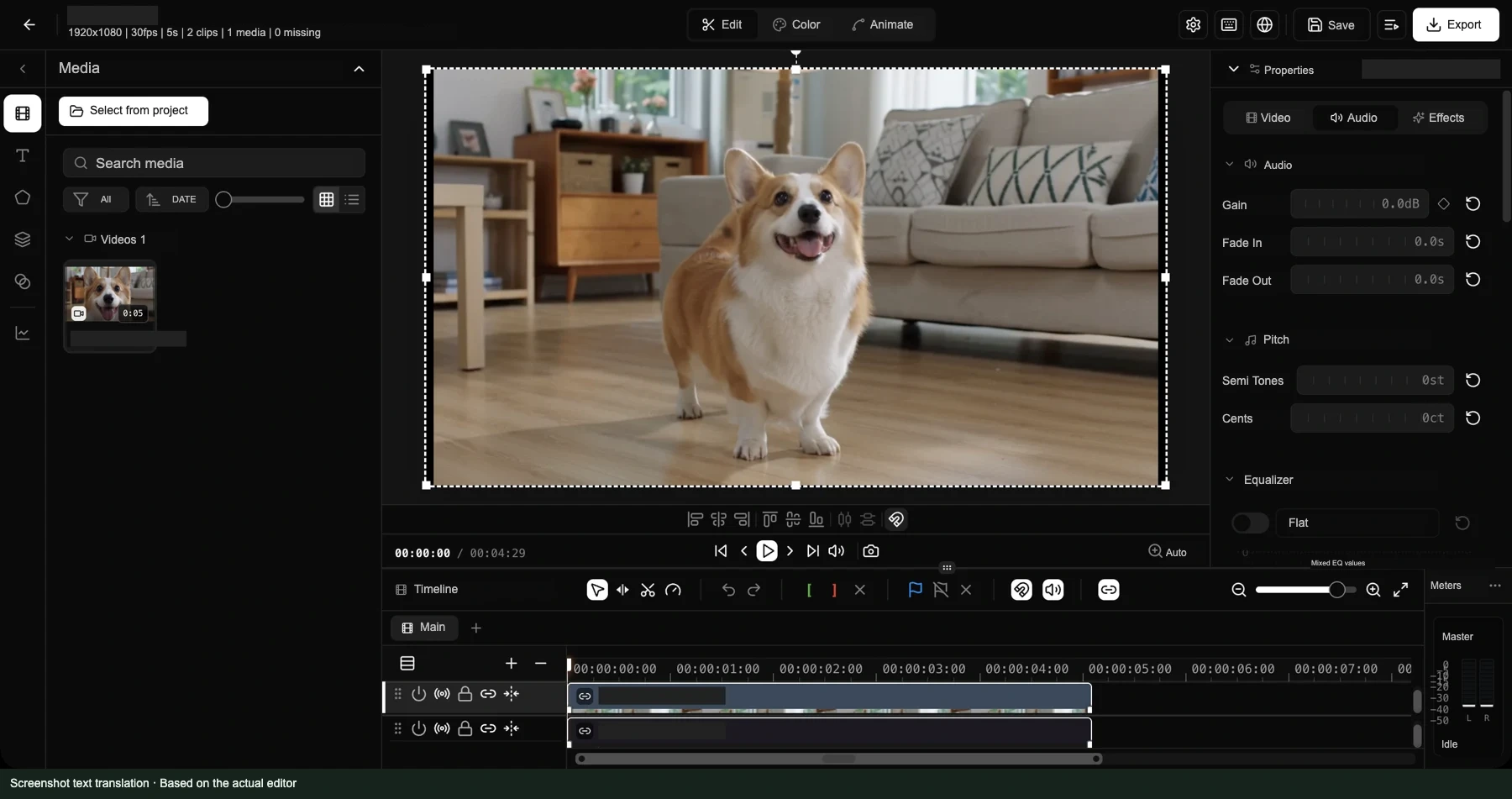
Select A and move the playhead just before the mother starts speaking. Press Space to check the moment, then pause. Drag the clip’s left edge to the right to remove the wait. Drag its right edge to just after the dialogue ends, keeping the complete line.
Repeat for B and C. Dragging an edge shortens the part you use; dragging the middle moves the whole clip. Start with a small trim. Use Undo in the top bar if you cut too much.
03To remove a pause in the middle, split twice
Move the playhead to the start of the unwanted pause, select the clip and use Split at playhead. The default shortcut is Cmd+K on Mac or Ctrl+K on Windows. If you have changed it, check the keyboard button in the top bar.
Move the playhead to the end of the pause and split again. Select the separate middle piece and press Delete. Play the remaining parts to make sure you have not cut a word or a necessary action. Then move the later part left to meet the earlier part.
04Place A, B and C together without gaps
Move A to the beginning of the timeline. Align B’s left edge with A’s right edge, then put C immediately after B. In the example plan, the cuts fall at 4 and 7 seconds and the scene ends at 12 seconds.
Play from the end of A through B and C. If the preview goes black at a cut, zoom into the timeline and look for a small empty gap. If sound and picture move out of sync, undo the move, enable linked selection using the chain control and move the picture with its original audio.
05Save this cut, then adjust sound or export
The goal of this pass is specific: three clips play in story order, unwanted waits are gone and the dialogue is intact. Click Save. These editing operations and export are free in Panco, so you can keep revising in the same project.
If dialogue levels jump between clips, continue with the audio guide. If the scene plays clearly, export the MP4. You do not need to move the footage to another editor for this step.
Balance neighboring dialogue clipsExport and download an MP4Follow the full project-to-edit workflowHow to make a short drama with HappyHorse06Common trimming problems
Why did the whole clip move instead of getting shorter?
You dragged the middle of the clip. Undo the move, then drag its left or right edge to trim it.
Why does playback turn black after I delete a piece?
There is an empty gap in the timeline. Move the following clip left until it meets the previous one, then replay the cut.
Must my three clips total 12 seconds?
No. Twelve seconds is the total in this exercise. Keep complete dialogue and actions in your own footage rather than forcing it to match that number.