Turn Your AI Videos into a Short Drama with Panco’s Free Editor
On this page
Your videos are already in Panco. You can keep working in the same project: open Clips, put the videos in story order and export one finished file. There is no need to download every source clip and upload it to another editor. Panco’s editing tools are completely free. This guide takes you from project videos to a first cut you can download.
01What you can finish in the Panco editor
To turn generated videos into a short drama, you usually need to arrange the scenes, remove unwanted pauses, balance the sound and produce one video file. You can do all four in Panco, with no separate editing or export charge.
Choose the versions you want to use in one project. If this is your first edit, start with one video to learn the controls, then add more. If you still need footage, follow the complete production guide first.
Create your script, characters, storyboard and videos02Create an edit in the project that holds your videos
Open the project and choose Clips in the sidebar, then New clip. Give it a recognizable name, such as “Episode 1 first cut.”
Choose 1080×1920 for vertical video or 1920×1080 for landscape. For this first exercise, 30 fps is a reasonable starting point. Click Create project to open the media library, preview and timeline. Use the same aspect ratio you chose when generating your videos where possible.
03Select your generated videos directly from the project
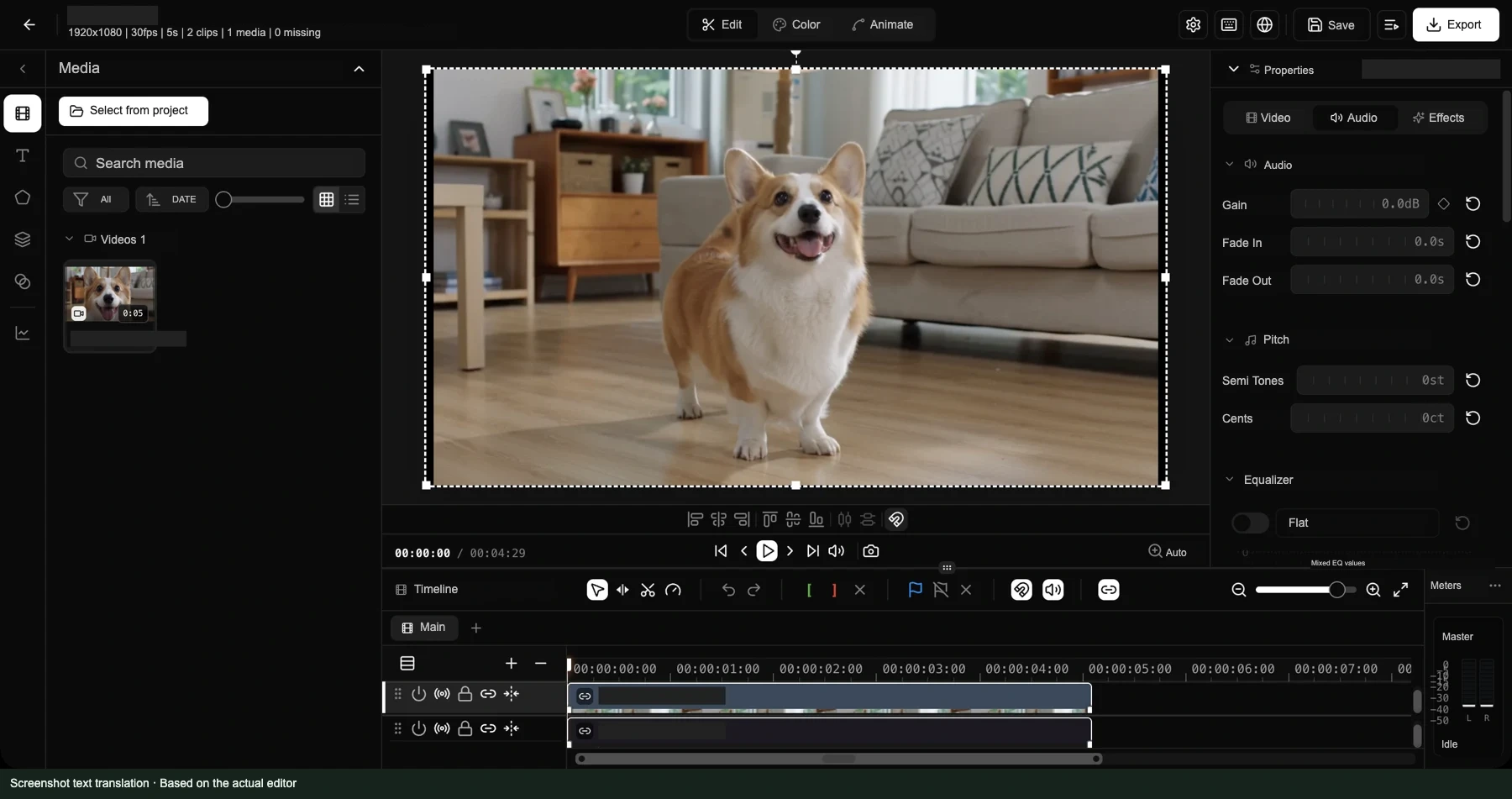
In the Media panel on the left, click Select from project. Select the video cards you want, then confirm. They appear in the media library without a download and re-upload to another tool.
Drag the first video from the library to the far left of the timeline below. The picture should now appear in the central preview. A video sitting only in the library is not yet part of your film.
04Add the next clip, then remove the parts you do not need
Drag the second video immediately after the first and the third after the second. For a farewell scene, the order could be a mother giving advice, her son nodding, then the son leaving. Press Space to watch the sequence.
If a clip takes too long to reach its action, select it and drag its left edge to the right. To remove a pause after the action, drag its right edge to the left. Move the following clip against the new end so there is no black gap.
A video with sound may appear as linked picture and audio items. Keep them moving together so the voice stays with the picture. The next guide walks through a specific three-clip arrangement.
Practice trimming and joining three clips05If one clip sounds too loud, adjust that clip
Play two neighboring clips. If the second is noticeably louder, select its audio item, open Properties → Audio on the right and lower Gain slightly. Listen again from the end of the previous clip.
This changes the existing sound; you do not need to generate the video again. Use Fade In or Fade Out when the sound starts or ends abruptly. The audio guide gives you values to enter for practice.
Try specific volume and fade settings06Save your edit and export an MP4 for free
Click Save in the top bar to keep an editable project. Then click Export, choose Video and the Recommended preset, check that the duration covers the whole sequence and click Export Video. When it finishes, click Download to get the MP4.
Your separate project clips can now play as one file. To replace a scene later, open the same edit from the project’s Clips list. You can keep revising without moving your source footage between tools.
Follow the export settings and download stepsExplore Panco editing tools07Before your first edit
Does free editing also mean free video generation?
Panco editing and export are free. Generating videos, images or new audio is a separate feature; check its generation page for the applicable cost.
Do I need to download project videos first?
No. Open the editor in the same project and use Select from project to bring in the generated videos.
Do I need a whole episode before I start?
No. Start with one video to practice using the timeline, saving and exporting. Add the other clips from your scene once you know the controls.