Image to Video or Text to Video: Which Should You Start With?
On this page
Already know what the person and room should look like? Start by testing image to video. Still exploring the look? Try text to video. Here is how to choose for each shot and check the inputs in Panco.
01Choose based on what you already have
Text to video starts with words: describe what is in view and what moves. Image to video starts with a picture: use the words to explain how it should move.
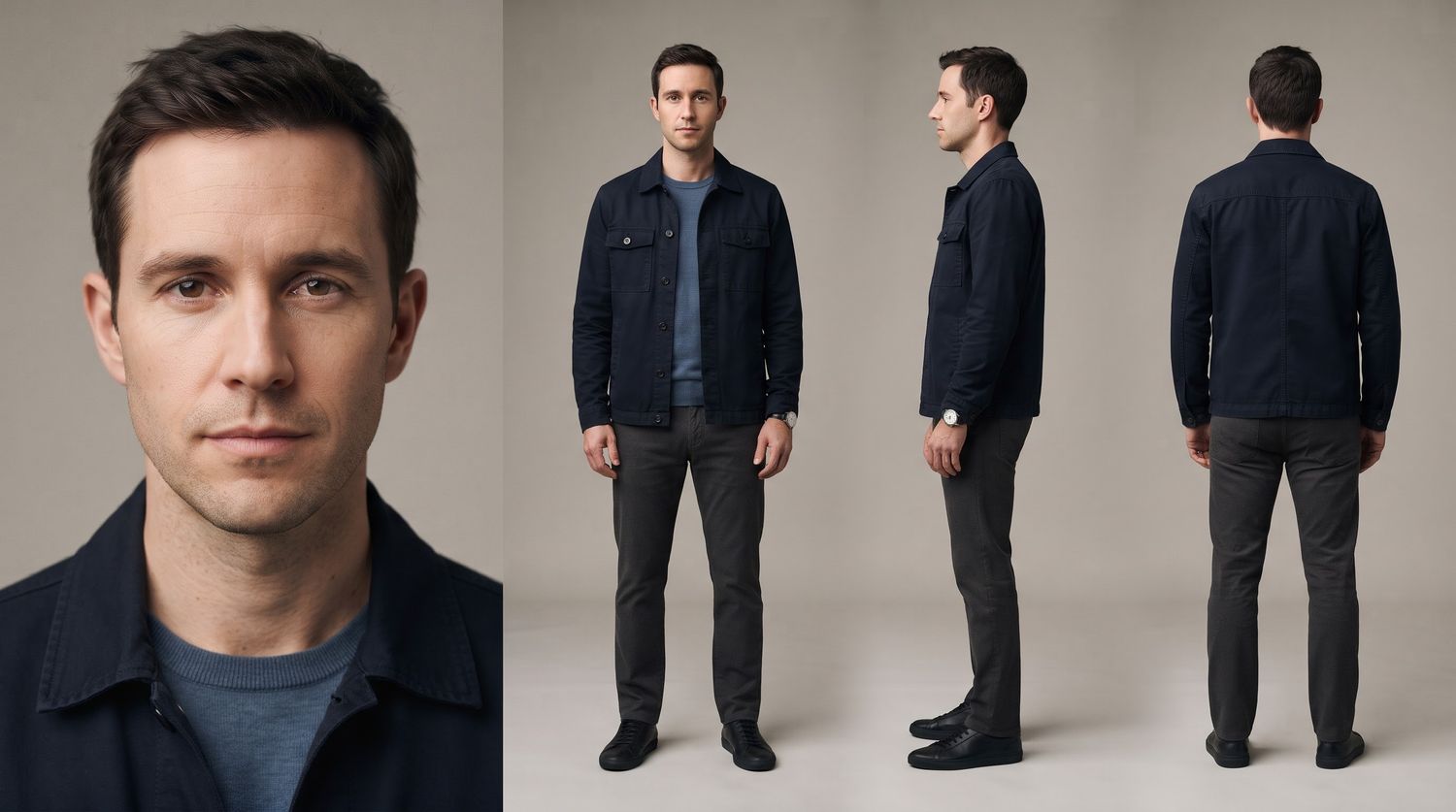
If the same person must appear again, an approved still gives you a useful starting point. Check it carefully first. A wrong hand or awkward pose can cause problems once the image starts moving.
| What you need | Try first | What to check |
|---|---|---|
| The same person again | Image to video from an approved still | Face at the start, middle and end |
| A clear hand or object action | Fix the still, then image to video | Hand shape and object position |
| A new landscape or mood | Text to video | Look and relevance to the story |
| Another view of the same room | A matching still, then image to video | Gaze, position and light |
| A difficult movement | A short test with a supported mode | Does the action finish cleanly? |
02Use the words for what the image does not show
For text to video, describe the person, place, action and camera. For image to video, the picture already shows much of the appearance. Focus on movement and where to stop.
TEXT-TO-VIDEO EXPLORATION
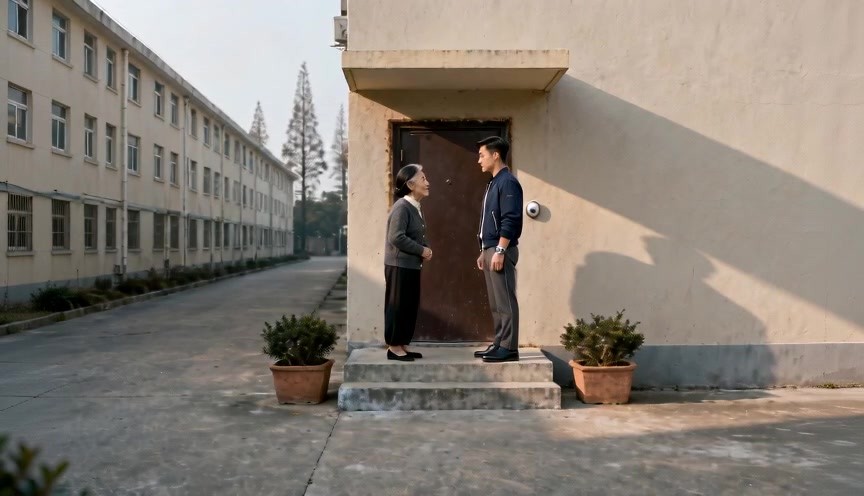
A static medium camera shot in a rain-damp courtyard at dusk. A young adult in a plain dark coat stands beside a closed wooden door. Cool ambient light and a warm lantern define the space. The person notices a sound, turns toward the door and holds still.

IMAGE-TO-VIDEO WITH AN APPROVED STILL
Keep the approved composition and visual appearance. The camera stays still. The person turns the head toward the door, pauses, then brings the right hand slowly toward the handle. End before touching the handle, holding a clear pose for the next cut.
The two suggested prompts below show the difference. For the second, first prepare a still with the right person, door and hand position.
03Check which pictures were sent
In Panco, prepare the characters, scene and props, then link them to the storyboard shot. Check which inputs your selected model accepts. A character reference and the first frame can serve different purposes.
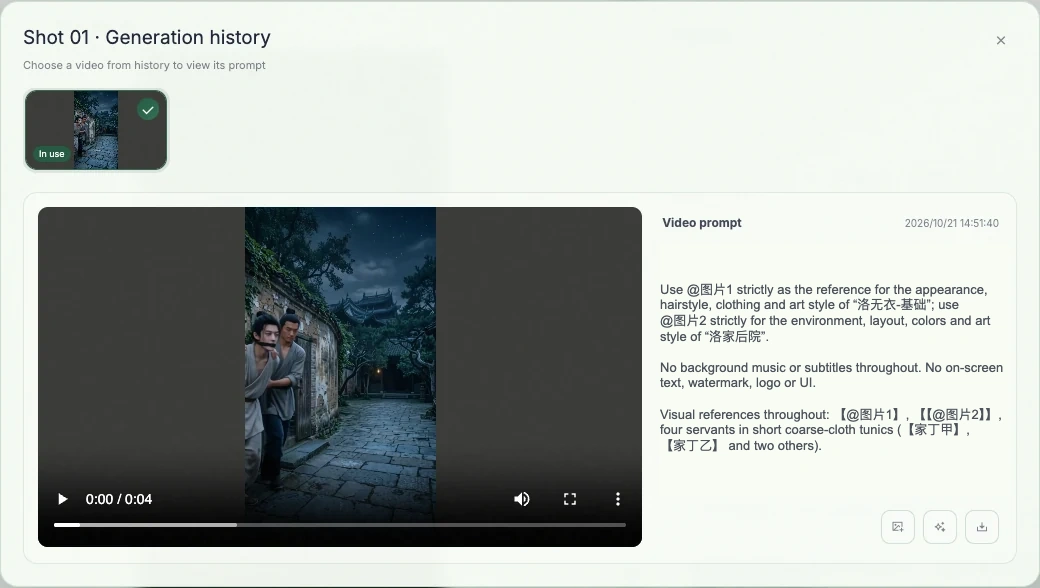
After generating, open history and compare the submitted prompt and image references with your choices. If a picture is missing, fix the link or input selection first. Adding more words will not select the missing image.
04Try one short shot before choosing
Try a simple action with a clear ending, such as reaching toward a door handle and stopping. Use the same goal and length when comparing modes. For image to video, include the work of preparing the still.
Check the face, framing, action and ending. Fix one issue at a time. If the image is wrong, change it; if the movement is too busy, shorten the action. Then see whether the clip can join your next shot.
Budget for accepted footage and retriesExplore Panco's storyboard workflowHow to make a short drama with HappyHorse05Questions about video inputs
Will image to video keep the face unchanged?
It gives the model a clear starting image, but faces can still change during movement. Watch the whole clip.
Is a character reference the same as a first frame?
A character reference describes identity. A first frame sets the starting picture. Check how your chosen model uses each input.
Can I use both in the same film?
Yes. Choose for each shot, then check that the style, lighting and cuts fit together.