Your First AI Short Film: A Step-by-Step Panco Guide
On this page
Have a scene in mind but do not know where to start? Follow this doorway goodbye from script to characters, shots, video, voices and editing. The clip below is an existing Seedance 2.0 result of about eight seconds.
01Write the scene and import the script
Start with a few actions: the mother speaks, the son nods, he leaves, and she stays at the door. You can work with the script Agent to develop the people, problem and ending before importing.
Episode 1: Farewell at the Door

Scene 1: At the entrance of an apartment building, early morning, outside
Characters: Son, Mother

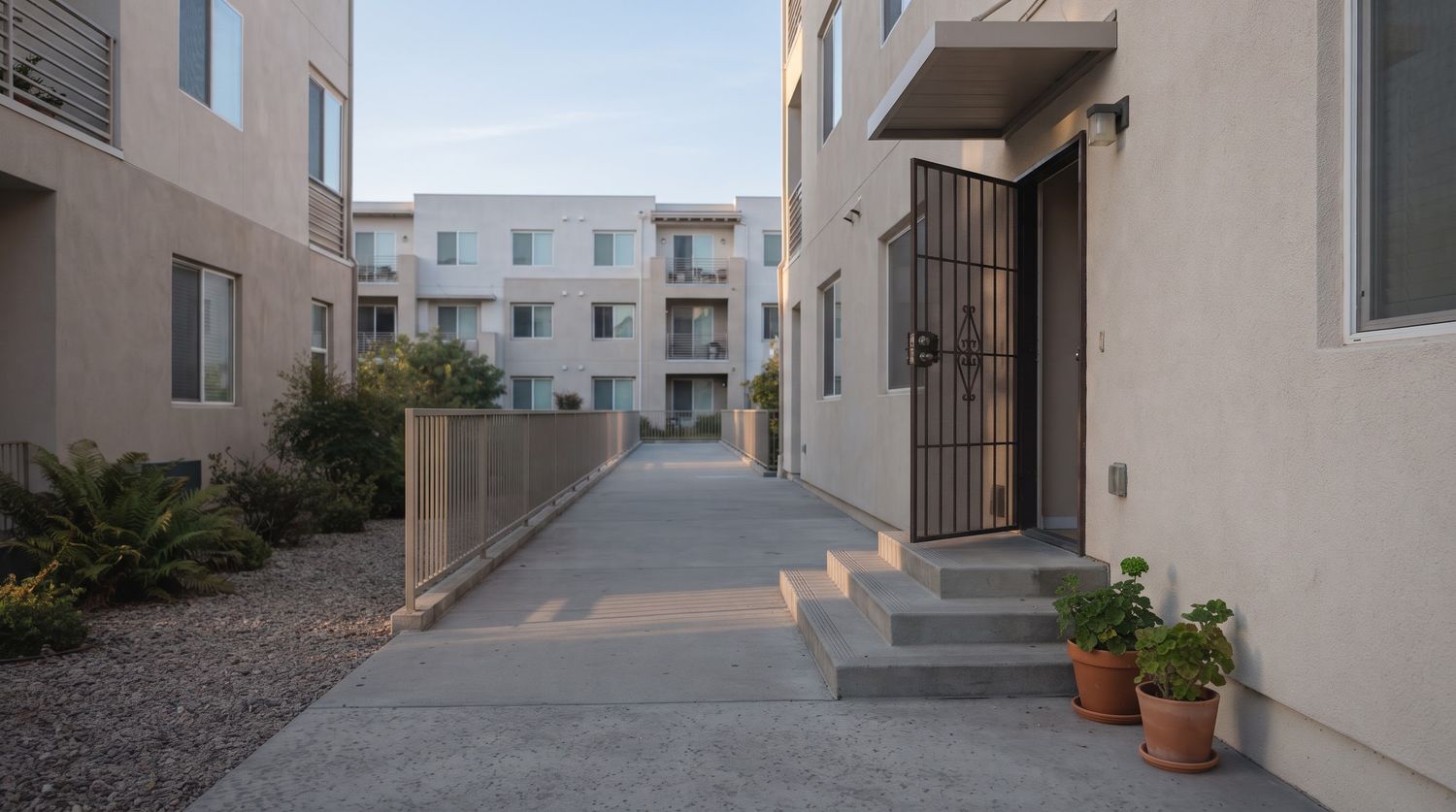
The mother stands by the door, while her son pauses at the bottom of the steps. She softly gives him some reminders, and he listens quietly, nodding gently.
He then turns and walks into the hallway between the buildings. The mother stays where she is, slowly folding her fingers, watching his figure fade into the distance.
Open your project in Studio, choose Script, then Add script. From Create → Script creation, choose New script instead. Paste text or upload doc, docx, txt or md. Keep an episode or act heading so the story has a clear boundary.
Enter the name, parsing model, visual style and character appearance type, then create the script. On episode confirmation, check the names, actions and lines. Use Edit episode to correct them. The short script below is a suggested practice text.
02Prepare the people and location
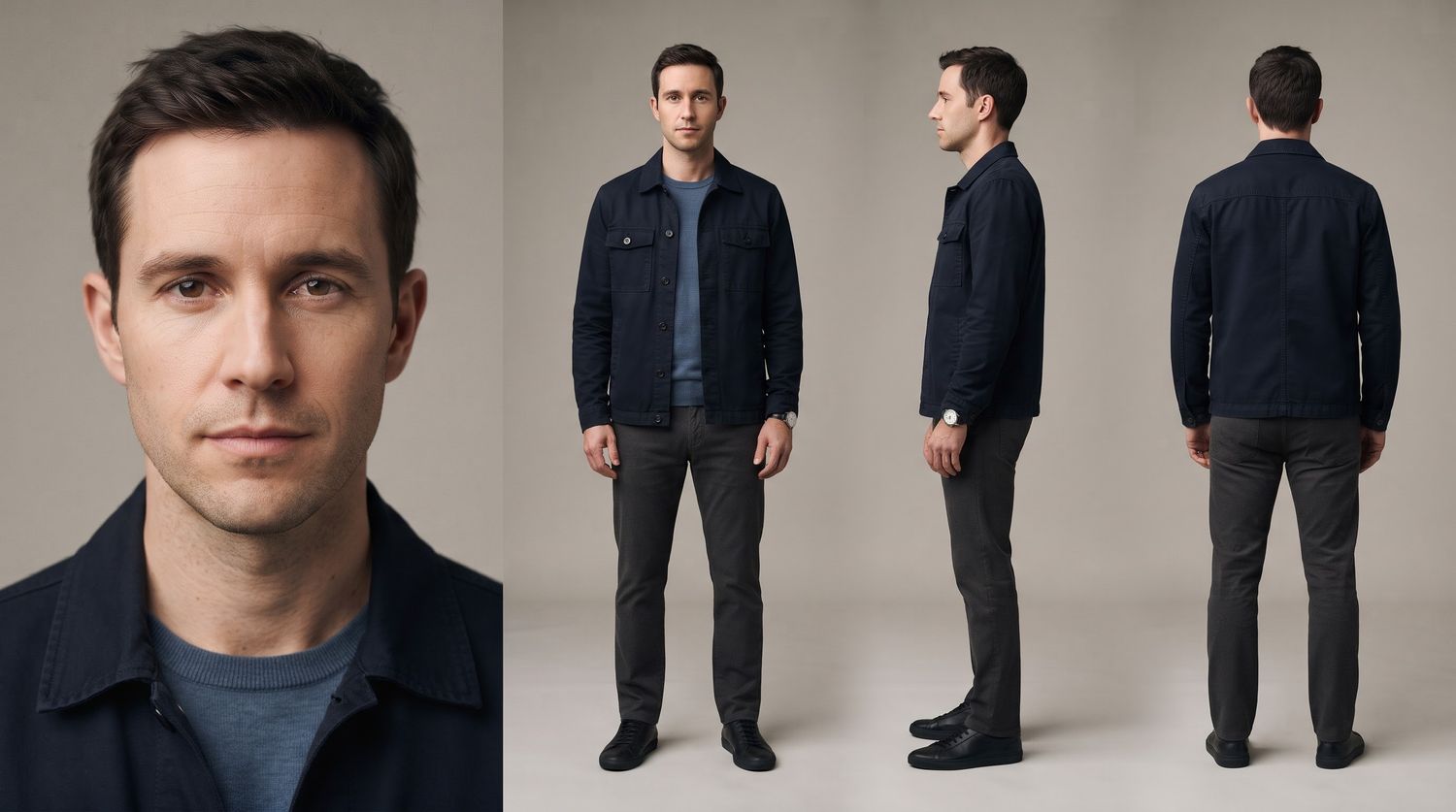
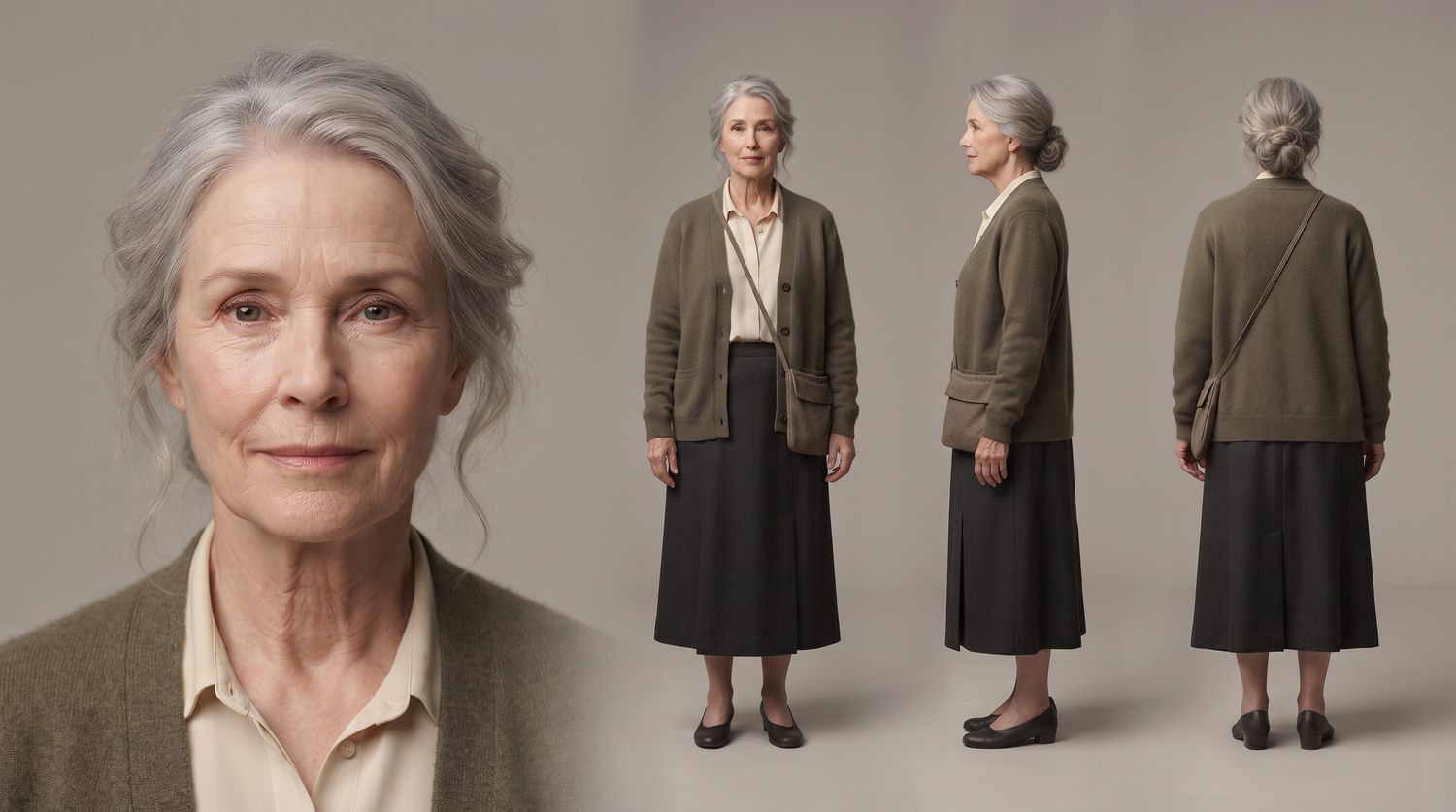
In element creation, check the Character, Scene and Prop tabs. Merge duplicate names and check descriptions before generating images or using batch generation. This goodbye needs two people and one doorway.
Choose the faces, hair and clothes. For the room, check the door, steps, passage and light. Keep the approved pictures in their elements. To check both people in one view, use image fusion in the project’s Images area before generating movement.
03Give each shot one job
In storyboard creation, choose the episode, segment and shot. Check the camera, summary, linked characters and scene, and visual description. Start with a shared view, then show the mother speaking and the son listening.
No background music throughout, no subtitles throughout. No on-screen text, no watermark, no logo, no UI.
Full-period visual material: 〖@Son〗, 〖@Mother〗, 【@Apartment entrance-Base】.
Visual baseline: Early morning, the mother stands above the doorstep, the son stands below the steps, mother and son facing each other; clothing, doorway layout, and lighting remain the same, camera stays on the same side of the axis.
0.0–3.0 sec: Wide shot with a fixed camera, showing the positions of the mother, son, and steps, both quietly facing each other.
3.0–5.0 sec: Cut to a medium close-up of the mother, she looks at her son, gently reminds him, expression restrained.
5.0–8.0 sec: Cut to a close-up of the son, he listens quietly, nods once gently, without moving his lips.
End state: Mother stays by the door, son still at the bottom of the steps, ready to transition to the next scene of leaving.
Negative constraints: Do not add other characters, do not change hairstyle or clothing, do not break the axis, do not cry, do not do exaggerated actions.
Type @ and select the actual element from the list. Pasting a name alone does not link it. The suggested prompt below helps plan the opening; select your own elements before using it.
Seedream 5.5 for Motion Comics: Edit Frames, Props and In-Scene Text04Generate one important shot first
Select the model, reference mode, aspect ratio and length. Try the two-person shot first. Check the number of people, clothes, positions and who speaks. Fix a specific problem before generating all the other shots.
For a separate test, open Create → Freeform creation and choose Video. That entry offers Wan, MiniMax and Kling; the project video list also has a Seedance 2.0/2.5 entry. The clip shown here uses Seedance 2.0. Compare models with the same references and action, and record the settings.
Prompts for motion, camera and dialogueHow to Make a Short Drama with Seedance: References, Shots and PromptsWan 3.0 for Short Dramas: References, Video Shots and Scene EditingMiniMax H3 for Motion Comics: Turn Performance References into ActionHow to make a short drama with HappyHorse05Prepare the voices and pauses
Open Voice in the project, choose New audio, then Speech synthesis. Start with one speaker, enter a line and audition a voice. Prepare each character separately to keep the voice consistent.
Read “Take care on the way. Let us know when you arrive.” at a natural pace. Adjust speed and the pause at the end if needed, then generate and listen to the result. In the edit, choose the video’s original voice or separate dubbing so the same line does not play twice.
06Put the candidate clips side by side
Open the project’s canvas. The plus menu offers Add node, Upload and Choose from project. Put the story on one side, references beside it, and candidate clips in story order.
Add brief notes such as “Keep: clothes match” or “Redo: the son appears inside the door.” Make sure the chosen version also matches the storyboard so you do not use the wrong file in the edit.
Explore the infinite canvas07Edit for free in the same project, then export your drama
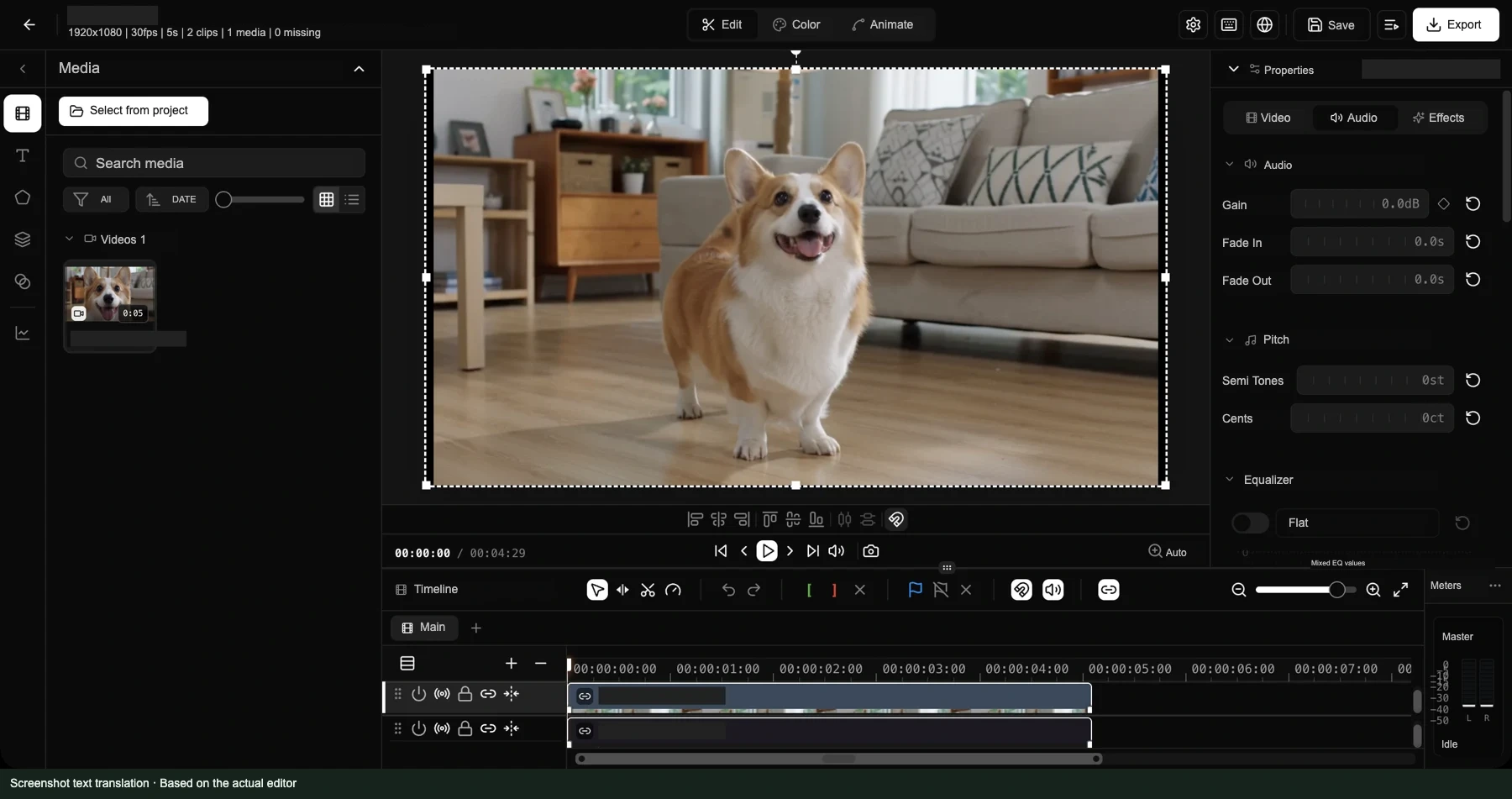
After generating your videos, choose Clips → New clip in the project sidebar, enter a name and choose the frame rate and dimensions. In the editor, use Media → Select from project to bring in the generated videos directly, without downloading them and uploading them to another application.
Drag the clips onto the timeline in story order: facing each other, giving advice, leaving and watching the departure. Trim unwanted waits by dragging the clip edges, balance dialogue volume and click Save. Then choose Export → Video → Recommended → Export Video. When it finishes, click Download to get the MP4. Panco editing and export are completely free.
For your first edit, follow the complete free editing guide below. If you only need one step, open the trimming, audio or export guide. The canvas is an optional way to compare candidate footage; you can start editing directly.
Turn project videos into a first cutPractice trimming and joining three clipsEnter volume and fade settingsChoose Recommended and download an MP408Getting started questions
Start with two people and one location. Keep the references and usable clips in the same project so you can reuse them.
Can I start with only an idea?
Write who is there, where they are, what happens and how it ends. Add dialogue and an episode heading, then check the imported text.
Do I need new character pictures for every shot?
Reuse the approved character for the same outfit. Add a new pose or angle based on that reference when needed.
Do I need to use every video model?
No. Start with one model and an important shot. Try others when you have a specific problem to compare.